> For the complete documentation index, see [llms.txt](https://learn.doubletick.io/llms.txt). Markdown versions of documentation pages are available by appending `.md` to page URLs; this page is available as [Markdown](https://learn.doubletick.io/automations-and-integrations/custom-automations/automatically-fix-phone-numbers-with-country-code-in-doubletick.md).
# Automatically Fix Phone Numbers with Country Code in DoubleTick
In today’s digital communication landscape, businesses rely heavily on WhatsApp to connect with customers quickly and efficiently.
However, WhatsApp requires phone numbers to be stored in a specific international format. If customer phone numbers are collected without a country code, message delivery can fail.
This guide explains how to use a Number Correction API in DoubleTick to automatically format phone numbers with the correct country code before sending WhatsApp messages or templates.
***
### Why Phone Number Formatting Matters
Customer phone numbers often enter the system through sources such as:
* Google Sheets
* Website forms
* Webhooks
* CRM integrations
In many cases, these numbers are stored like this:
```
7038896140
```
But WhatsApp requires numbers in E.164 international format, such as:
```
+917038896140
```
If the country code is missing, WhatsApp message delivery will not work.
***
### What is the Number Correction API?
The Number Correction API acts as an intermediary that:
* Receives an unformatted phone number
* Applies the correct country code
* Returns the number in WhatsApp-compatible format
This ensures that all customer data stored in DoubleTick is ready for WhatsApp communication.
***
### How the Number Correction API Works
The workflow is as follows:
#### Step 1: Receive Raw Customer Data
A new lead is received from Google Sheets, Webhook, or another integration. The phone number may not include a country code.
Example:
```
Phone: 7038896140
Country: India
```
***
#### Step 2: Call the Number Correction API
The bot sends the raw number and country information to the Number Correction API.
***
#### Step 3: API Formats the Number
The API converts the number into the correct E.164 format:
```
+917038896140
```
***
#### Step 4: Update the Corrected Number in DoubleTick
The formatted number is stored in DoubleTick and becomes ready for WhatsApp messaging.
***
#### Step 5: Send WhatsApp Templates Successfully
Once the number is corrected, templates and automated WhatsApp messages can be sent without interruption.
***
## Implementing Number Correction in DoubleTick Bot Studio
This section explains how to set up this automation step-by-step.
***
### Step 1: Identify Your Incoming Data Source
First, confirm where customer phone numbers are coming from:
| Source | Trigger Example |
| --------------- | ------------------------ |
| Google Sheets | New row added |
| Webhook | Form submission received |
| CRM Integration | New contact created |
The Number Correction API should be triggered every time a new lead enters DoubleTick.
***
### Step 2: Set Up the Bot Trigger in Bot Studio
Open **Bot Studio** in DoubleTick and select the appropriate starting trigger:
#### If leads come from Google Sheets
Choose:
**On New Row in Google Sheet**
This will trigger the bot whenever a new row is added.
***
#### If leads come from a Webhook
Choose:
**On Webhook**
This will trigger the bot whenever external data is received.
***
### Step 3: Call the Number Correction API
Once the bot starts, the next step is to correct the phone number.
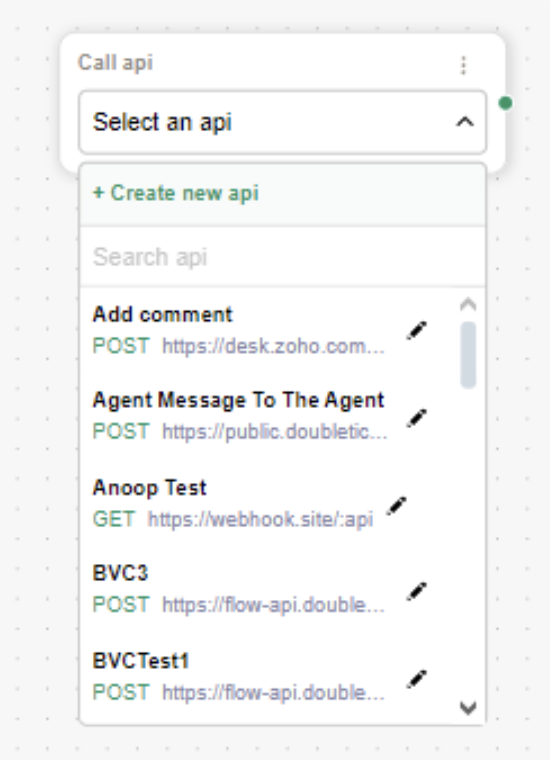
#### A) Add a Call API Action
1. Click the **+** icon in the bot flow
2. Select **Call API**
3. Connect it to the trigger node
***
#### B) Create the Number Correction API
Inside the Call API block:
1. Click **+ Create New API**
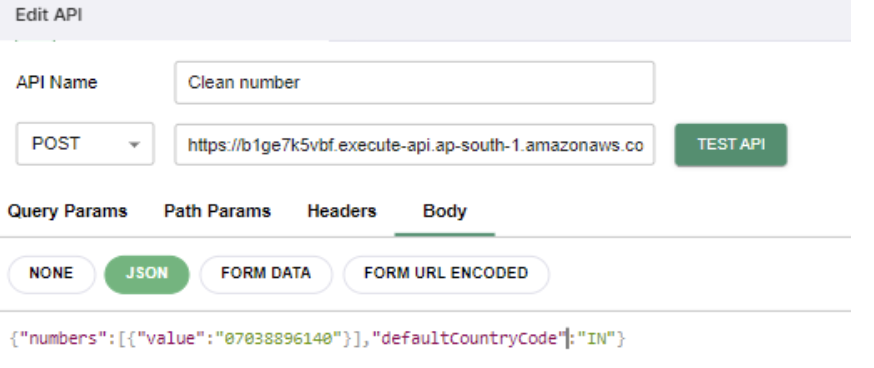
2. Enter the following details:
***
**API Endpoint**
```
https://b1ge7k5vbf.execute-api.ap-south-1.amazonaws.com/prod
```
***
**Method**
POST
***
**Body Type**
JSON
***
**Request Body Example**
```json
{
"defaultCountryCode": "IN",
"numbers": [
{
"value": "7038896140"
}
]
}
```
***
#### Explanation of Fields
| Field | Description |
| ------------------ | ----------------------------------- |
| defaultCountryCode | Country code to apply automatically |
| IN | India |
| value | Customer’s raw phone number |
Save the API after entering these details.
***
### Step 4: Send the Corrected Number Back to DoubleTick Using Webhook
Now that the first API returns the corrected number, the next step is to store it inside DoubleTick.
***
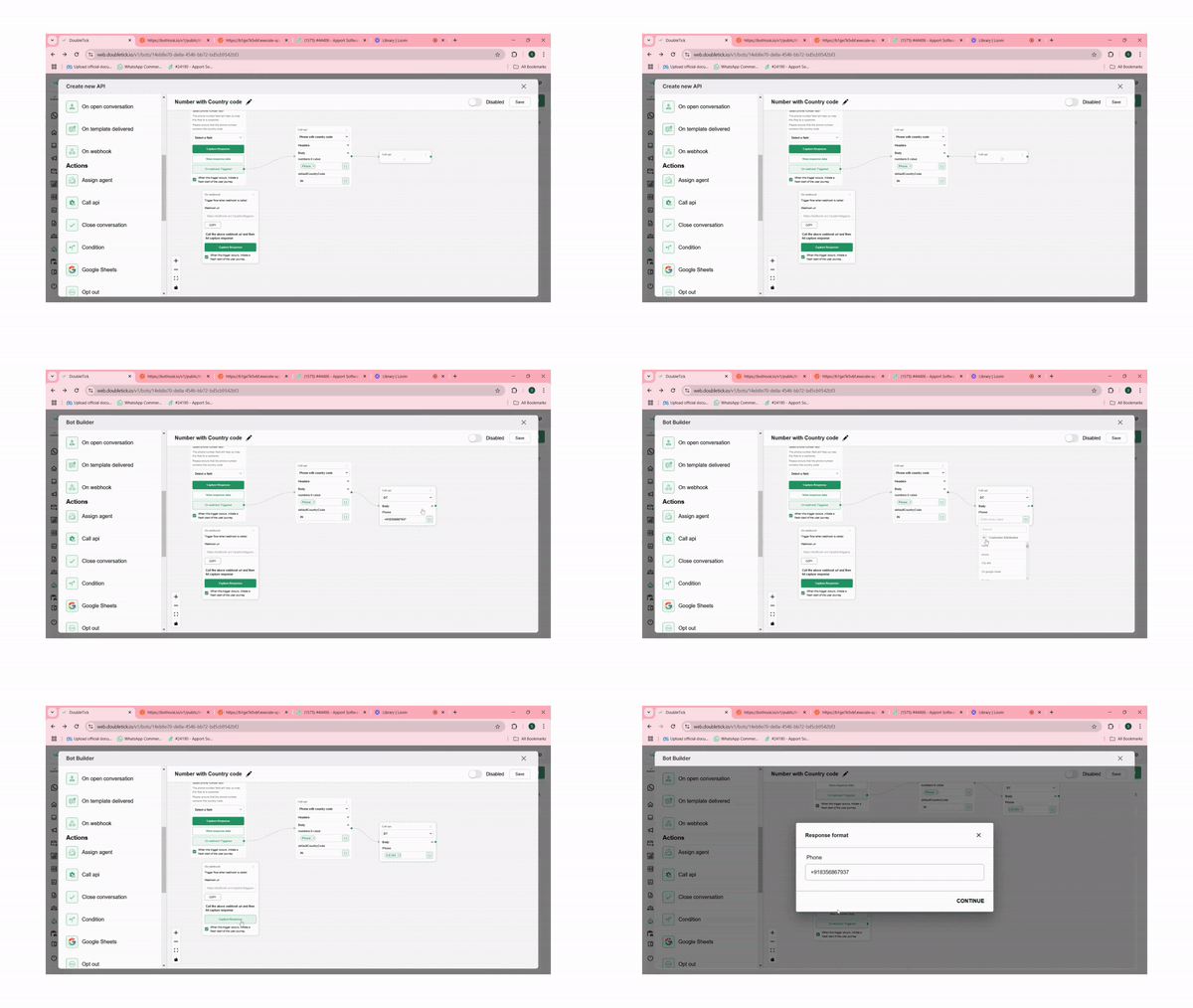
#### A) Add a Second Call API Action
1. Click **+ Add Action**
2. Select **Call API** again
This second API will be used to send the corrected number forward.
***
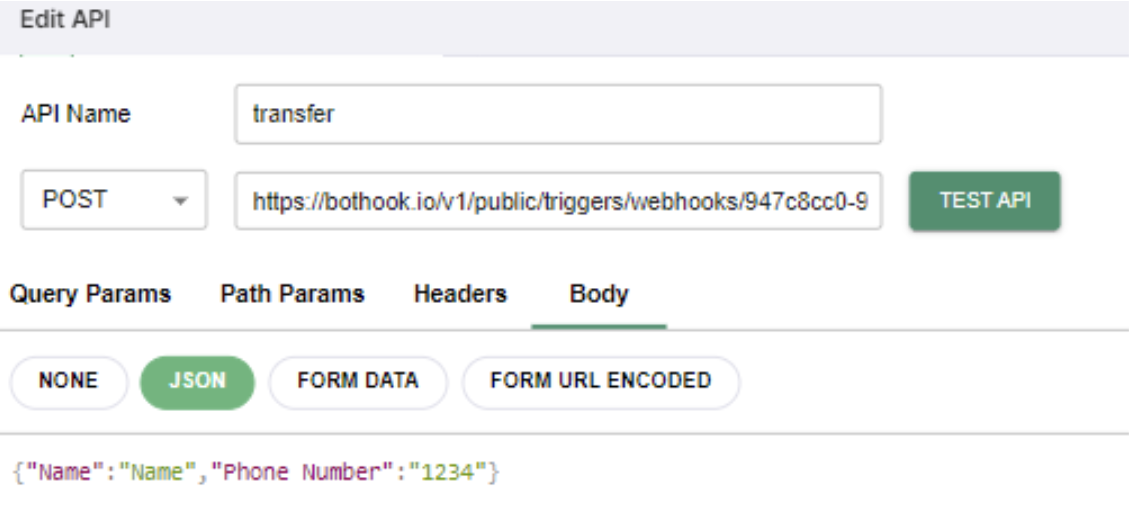
#### B) Create a Webhook API
1. Click **+ Create New API**
2. Paste your webhook URL
3. Set the body type to JSON
***
**Sample JSON Body**
```json
{
"phone": "+918356867936"
}
```
***
#### C) Map the Corrected Phone Number Automatically
Instead of typing a number manually:
1. Click inside the `"phone"` field
2. Select the response output from the first API call
3. Choose:
```
0.E164
```
This ensures the webhook always receives the corrected WhatsApp-ready phone number.
***
### Step 5: Capture Response
To confirm the workflow is functioning correctly:
1. Open the second webhook Call API block
2. Click **Capture Response**
This will display the final phone number with the correct country code applied.
***
## Final Outcome
With this automation in place:
* Phone numbers coming from external sources are corrected automatically
* All customer data stored in DoubleTick becomes WhatsApp-ready
* Message and template delivery works without formatting errors
Example conversion:
```
7038896140
```
Becomes:
```
+917038896140
```
***
## Recommended Use Cases
This setup is useful when:
* Leads are imported from Google Sheets
* Forms collect numbers without country codes
* Businesses deal with multiple regions
* WhatsApp template sending must remain uninterrupted
---
# Agent Instructions
This documentation is published with GitBook. GitBook is the documentation platform designed so that both humans and AI agents can read, navigate, and reason over technical content effectively. Learn more at gitbook.com.
## Querying This Documentation
If you need additional information that is not directly available in this page, you can query the documentation by asking a question.
Perform an HTTP GET request on the following URL with the `ask` and `goal` query parameters:
```
GET https://learn.doubletick.io/automations-and-integrations/custom-automations/automatically-fix-phone-numbers-with-country-code-in-doubletick.md?ask=&goal=
```
`ask` is the immediate question: it should be specific, self-contained, and written in natural language.
`goal` is what the user is ultimately trying to achieve, the reason they need the answer. Sharing it helps GitBook give you a better, more relevant answer. A goal is most helpful when it describes the outcome the user wants rather than restating the question. For example, with `ask=how do I create an API token`, a goal like `automate deployments from our CI pipeline` lets GitBook tailor the answer to that use case.
The response will contain a direct answer to the question and relevant excerpts and sources from the documentation.
Use this mechanism when the answer is not explicitly present in the current page, you need clarification or additional context, or you want to retrieve related documentation sections.