LeadSquared x DoubleTick
1. Overview — What This Integration Helps You Do
DoubleTick’s WhatsApp API integration with LeadSquared allows businesses to send WhatsApp messages directly from their LeadSquared CRM. This is especially useful for sales, marketing, and customer success teams who want to:
✔ Reach leads instantly on WhatsApp ✔ Send templates such as reminders, offers, confirmations, or updates ✔ Track message delivery and statuses inside LeadSquared ✔ Avoid manual switching between platforms
Once set up, the communication becomes smooth and automated, saving time and improving conversions.
2. Prerequisites (Before You Start)
Before beginning the integration, make sure you have the following ready:
✔ An approved WhatsApp Business Account & Number Your number must be verified and approved by Meta.
✔ An active DoubleTick account Templates must be created and approved inside DoubleTick.
✔ WhatsApp Business Messaging Connector installed on LeadSquared This connector allows LeadSquared to talk to DoubleTick.
If all three are available — you’re good to start.
3. Installing the WhatsApp Messaging Connector on LeadSquared

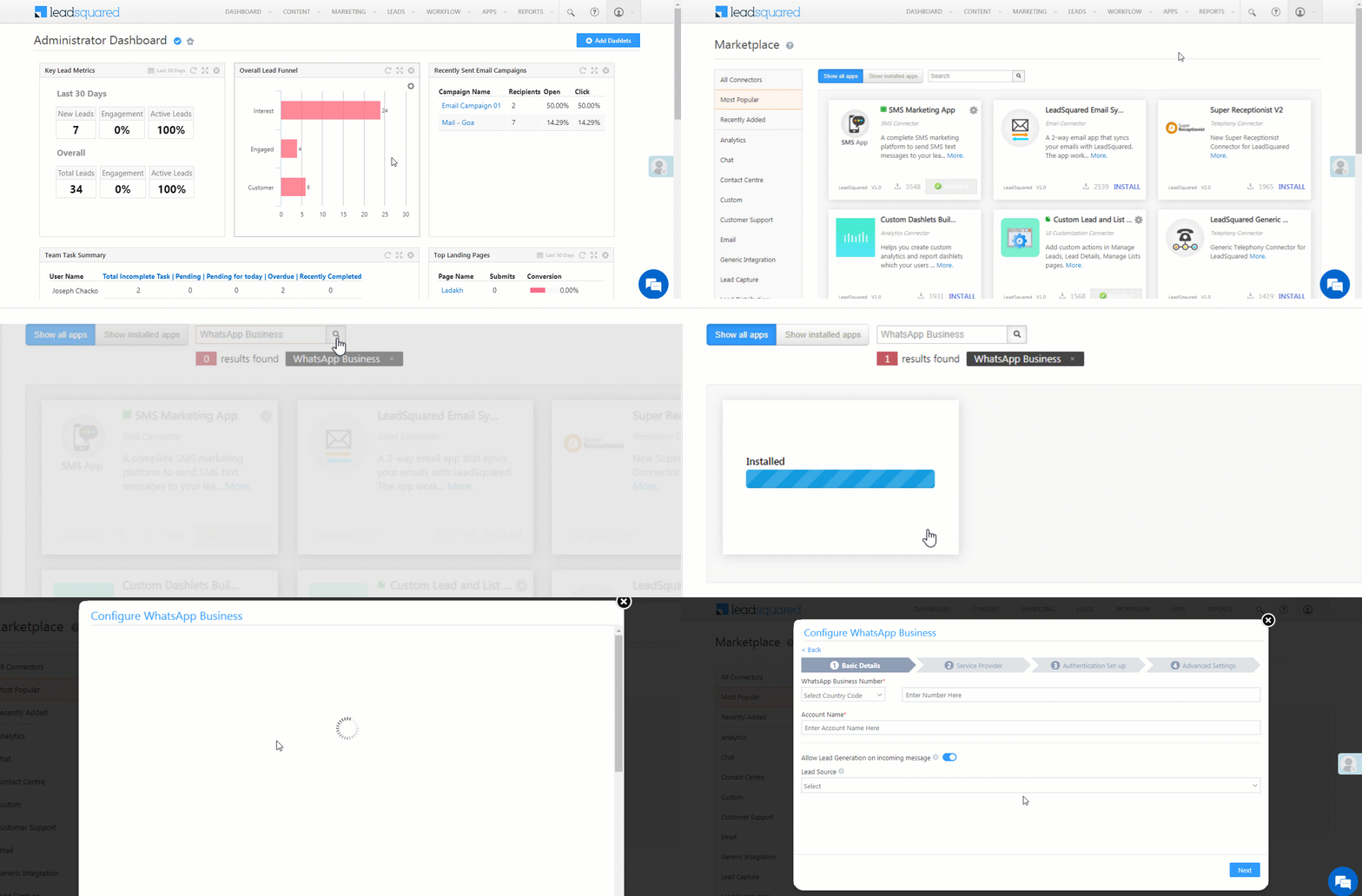
Log in to LeadSquared
Go to Apps Marketplace
Search for WhatsApp Business
Click Install
Click the gear icon → Configure
Click the Add Number (blue button)
This installs the connector required to send WhatsApp messages from inside LeadSquared.
4. Configuring the Connector
After installation, you’ll be guided through a configuration setup.
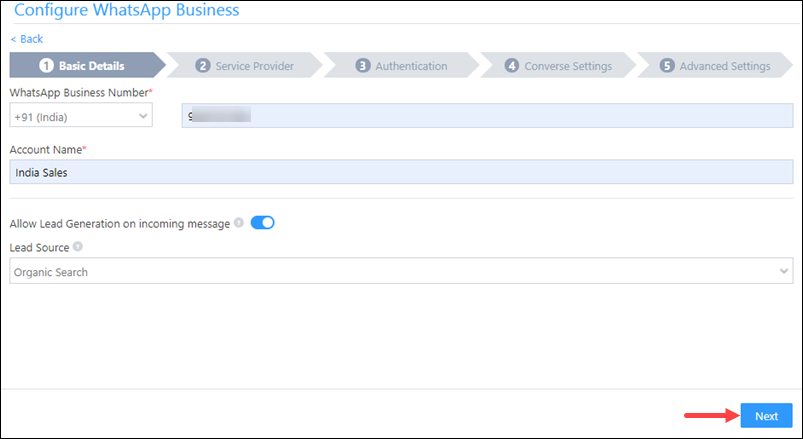
Step 1 — Basic Details

Enter:
WhatsApp Business Number — enter with country code (e.g., +91xxxxxxxxxx)
Account Name — choose any name that helps identify the connector
Allow Lead Generation — enable this if you want new WhatsApp chats to auto-create leads in your CRM
Lead Source — select the correct source for better reporting
Click Next to continue.
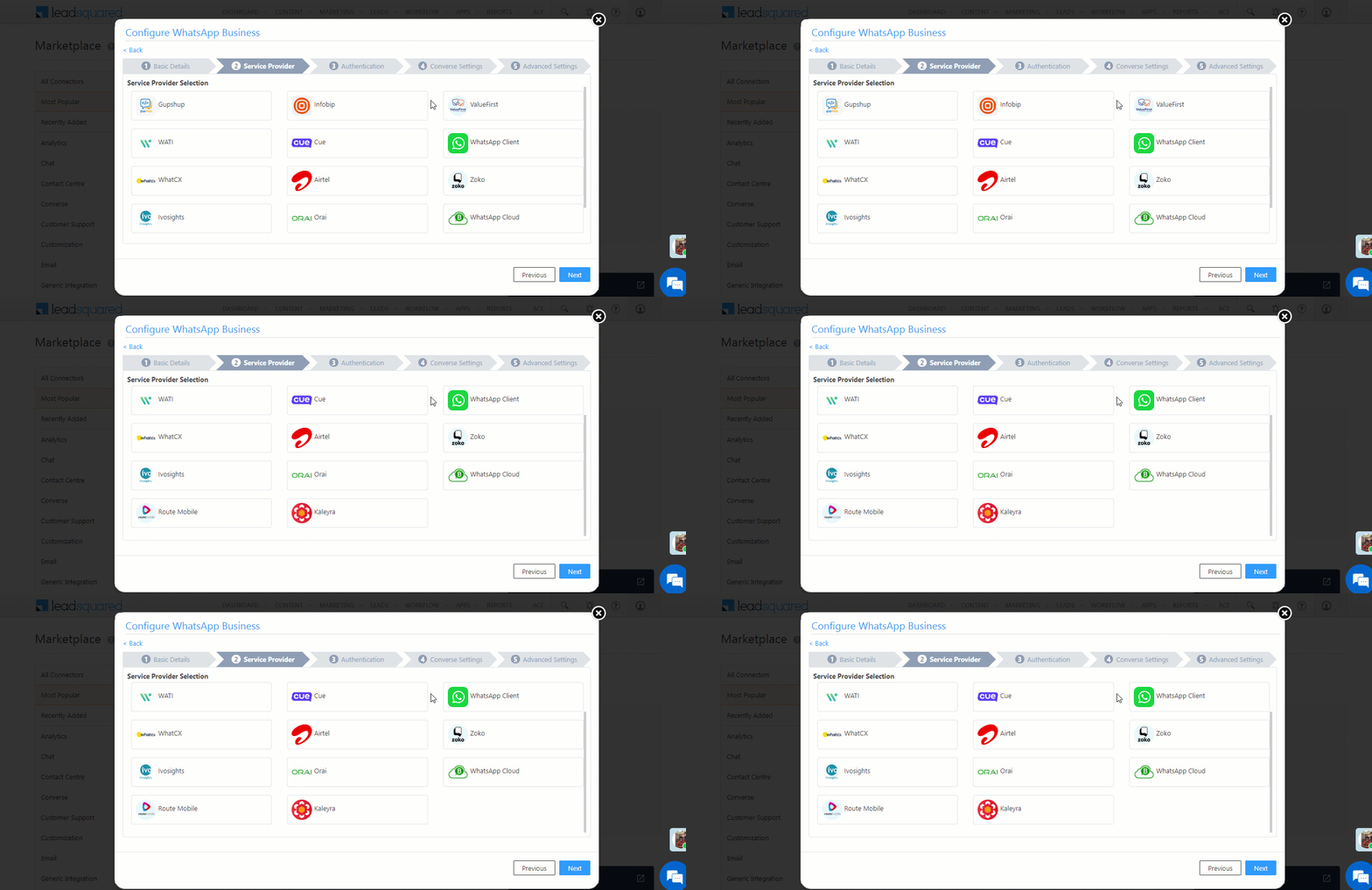
Step 2 — Service Provider Setup

In this step, you’ll link LeadSquared to DoubleTick.
Select WhatsApp Cloud as the Provider
Click Next
Fill in:
Send Message URL
https://public.doubletick.io/cloud-api/messages
Permanent Access Token
Get from DoubleTick → Settings → Developer API
WhatsApp Business Account ID
Leave blank
Authentication Header Template
{{Token}} (must be exact)
Get Media URL
https://public.doubletick.io/cloud-api/{{mediaId}}
After entering these values → click Next to complete setup.
5. Template Setup (Very Important Step)
For WhatsApp to send messages, templates must be:
✔ Created ✔ Approved ✔ Matched perfectly on both platforms
This happens in two parts.
Step 5.1 — Creating Templates on DoubleTick
Open DoubleTick
Go to Templates
Create a new template
Submit it for Meta approval
Wait for approval (only approved templates can be sent)
Step 5.2 — Adding the Same Template to LeadSquared

Once the template is approved in DoubleTick:
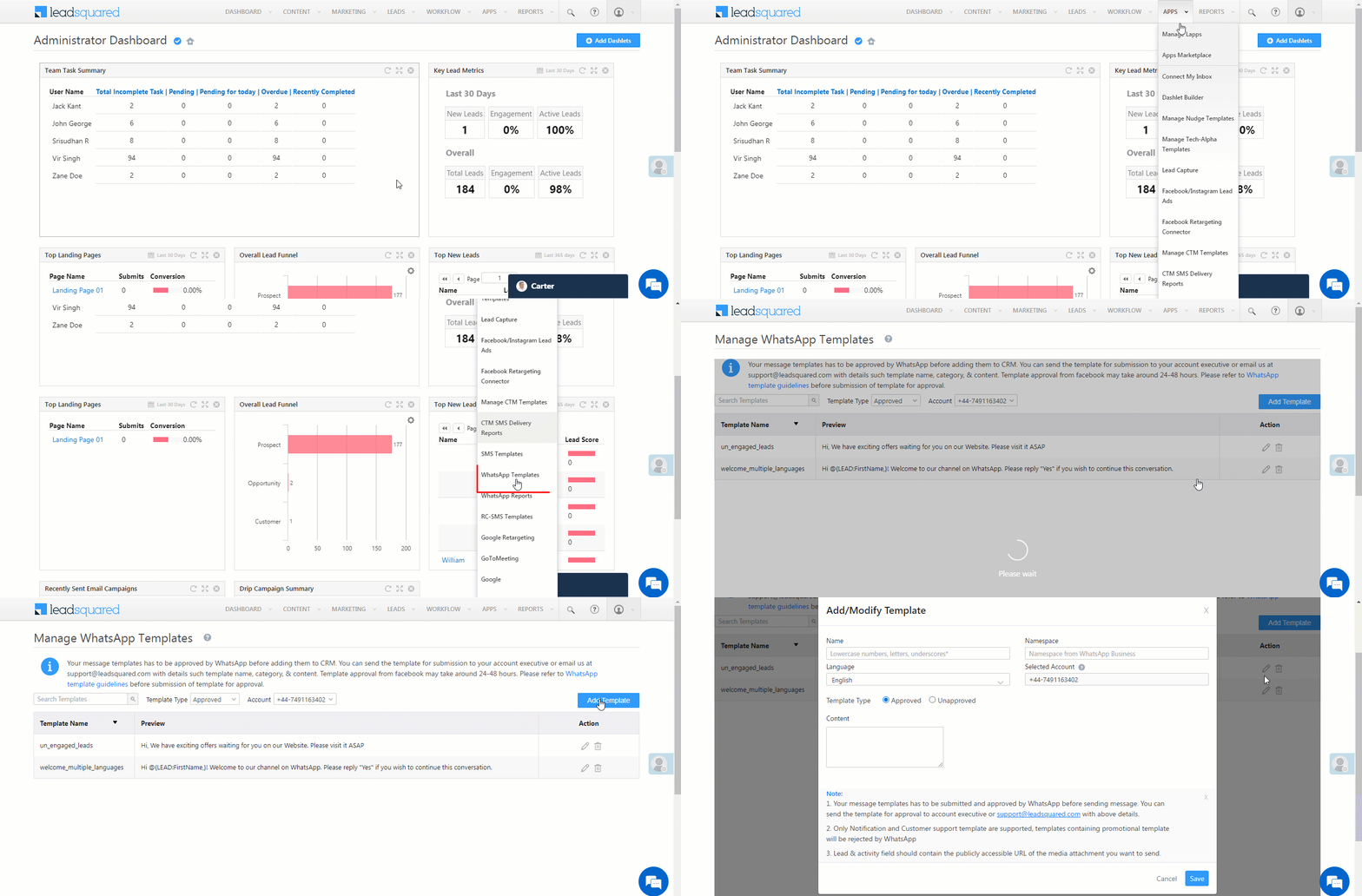
Go to LeadSquared → Apps → Template → Add Template
Fill the fields exactly as they appear in DoubleTick
Fields to Fill:
Name
Same as DoubleTick
Namespace
Display Name
Language
Same as DoubleTick
Template Category
Marketing / Utility
Content
Copy Header + Body + Footer from DoubleTick
Buttons
Add same button structure
STOP Button
Add as Quick Reply
⚠ Important Note: Every detail must match perfectly — the name, language, structure, placeholders, and buttons. If something doesn’t match, LeadSquared won’t send the message.
6. Sending WhatsApp Templates from LeadSquared

Once templates are added and approved, you can start sending messages.
Steps:
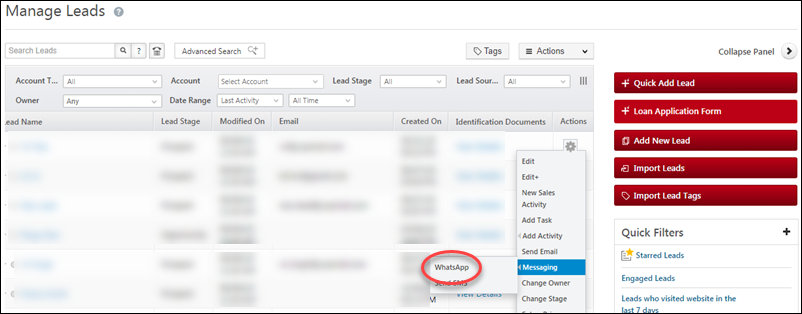
Go to Manage Leads
Select a Lead
Click the Settings icon beside the lead
Choose WhatsApp → Template
Select your template and click Send
If the template isn’t approved yet, the message won’t go out.
7. Checking Message Delivery & Status (Reports)
To confirm whether a message was delivered:
Go to Apps → WhatsApp Reports → One-to-One Message
Here you can check:
✔ Delivered ✔ Read ✔ Failed ✔ Pending
If you see an error, click:
→ Template → Delivery Section
If it shows:
“No such template exists”
it means that the template is either:
❌ Not approved yet or ❌ Not matched correctly between DoubleTick and LeadSquared
Final Thoughts
This integration is powerful because it connects CRM + WhatsApp in one workflow. Even non-technical teams can:
✔ Create leads ✔ Send templates ✔ Track delivery ✔ Follow conversations ✔ Keep records
All without switching platforms or using external tools.
Last updated