> For the complete documentation index, see [llms.txt](https://learn.doubletick.io/llms.txt). Markdown versions of documentation pages are available by appending `.md` to page URLs; this page is available as [Markdown](https://learn.doubletick.io/chat-management/start-and-manage-chats/how-to-start-a-chat-with-a-customer.md).
# How to start a chat with a customer
Learn how to start a new WhatsApp conversation with a customer from the DoubleTick dashboard, including when you'll need to send a template first.
You can start a conversation with a customer on DoubleTick even if they haven't messaged you first. Since WhatsApp follows a **template-based conversation policy**, the first message in a fresh conversation has to go out as an **approved WhatsApp template**. This guide walks you through starting a new chat from the dashboard.
#### What's covered
* [Process of initiating a new chat](#step-1-log-in-to-your-doubletick-account)
* [Template pricing and wallet deduction](#template-pricing-and-wallet-deduction)
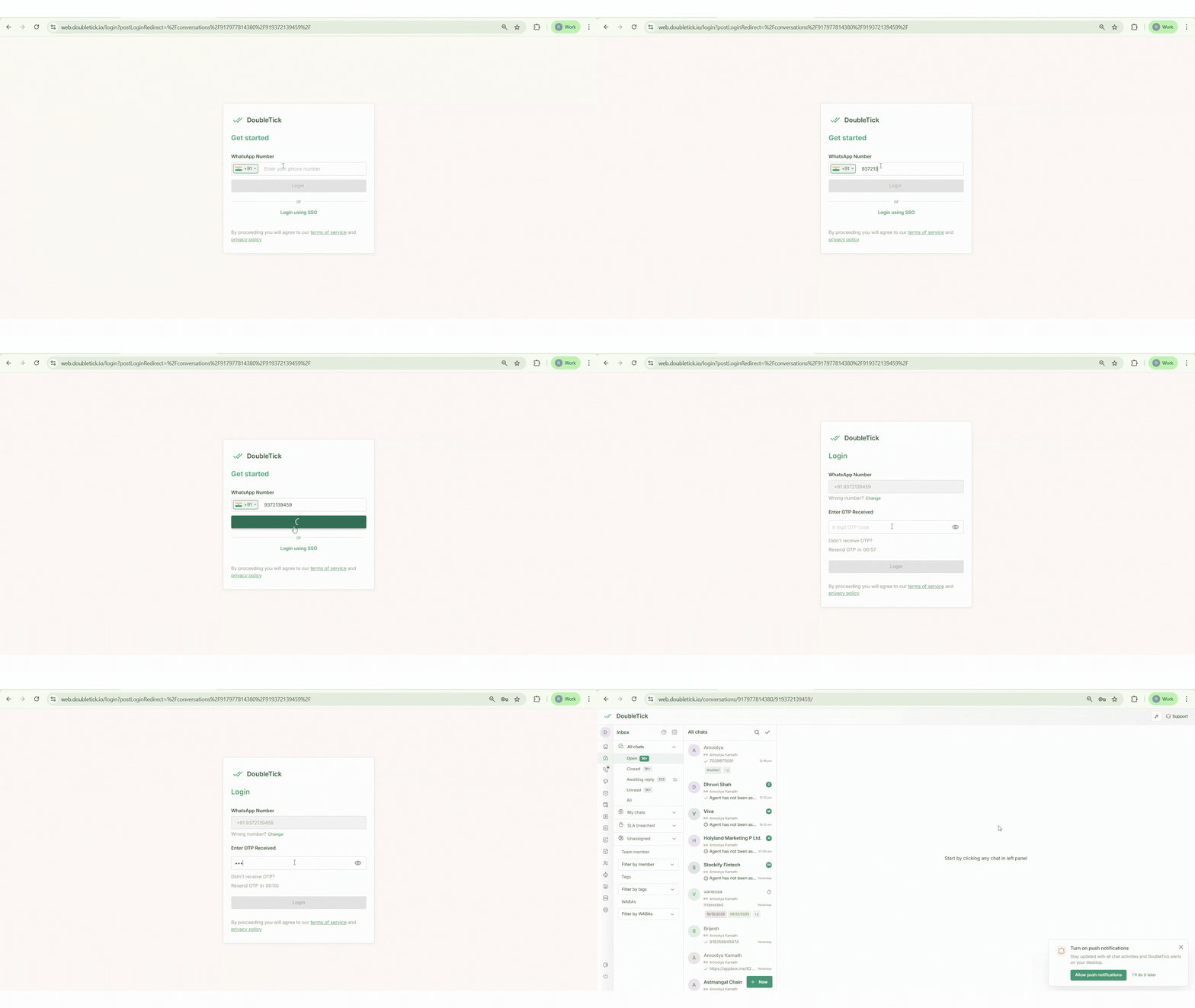
#### Step 1: Log in to your DoubleTick account
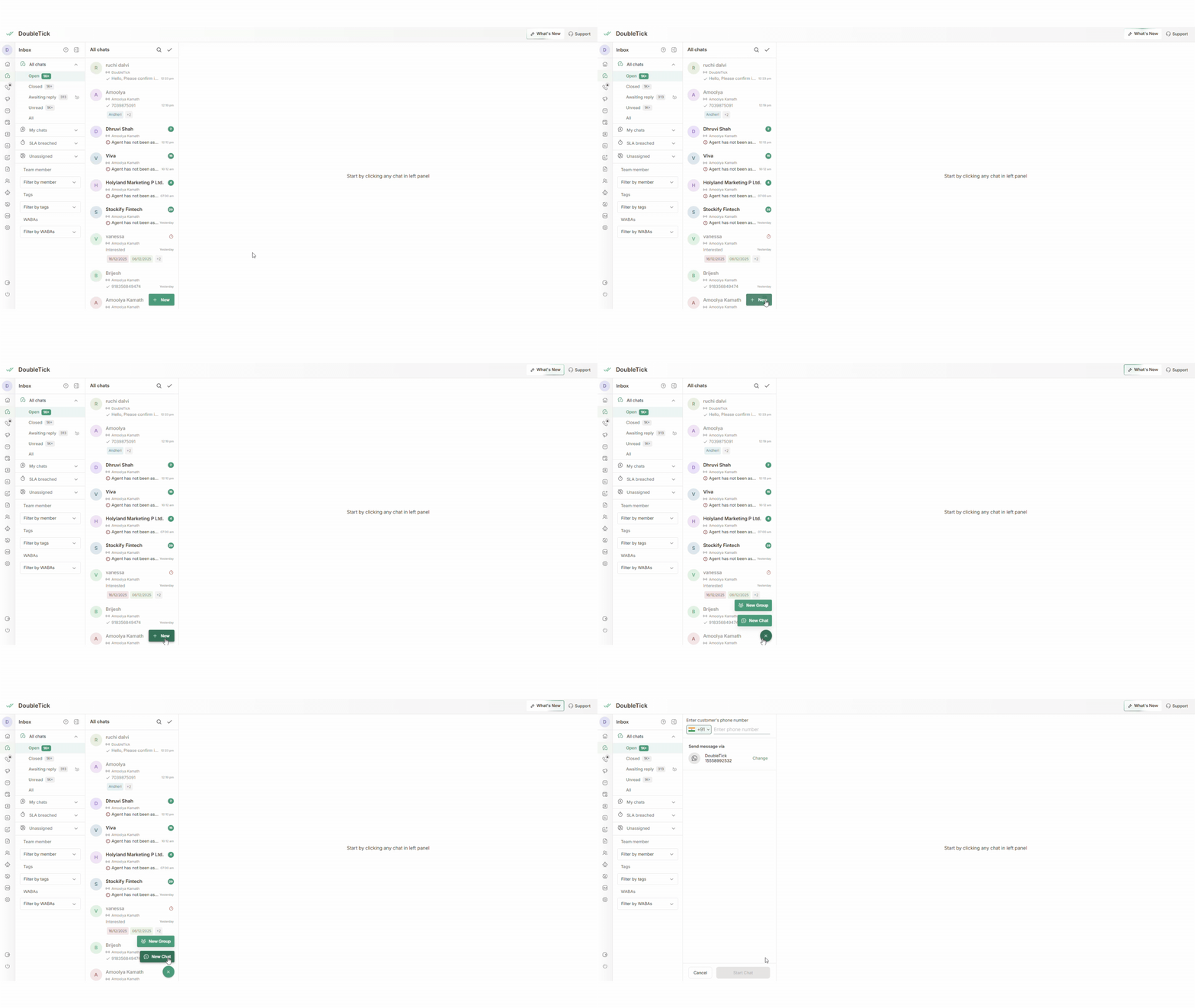
Once you log in, you'll land on the **Chats** section by default. This is where all your existing conversations live, and where you can start new ones.
**Step 2: Click the New button**\
At the top of the chat panel, click the green **New** button. A dropdown appears with two options:
* **New group**
* **New chat**
Select **New chat**, since you want to reach an individual customer.
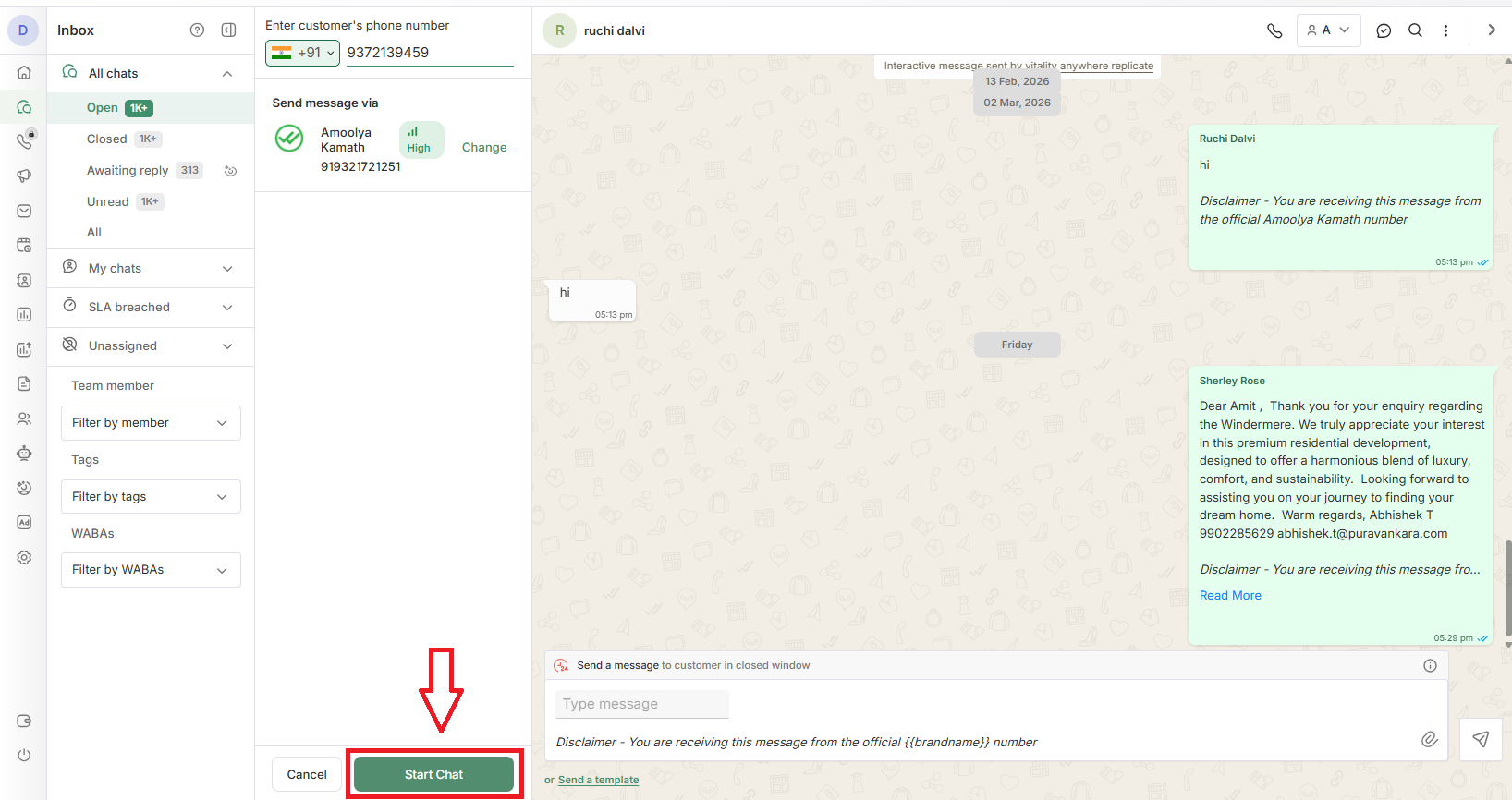
**Step 3: Enter the customer's phone number**\
Enter the phone number of the customer you want to contact.
* By default, the **country code is +91** (India).
* If the customer is based elsewhere, change the country code first — for example, **+971** for the United Arab Emirates.
* Then enter the customer's phone number.
**Step 4: Select the WhatsApp API number (Send message via)**\
Below the phone number field, the **Send message via** section shows which WhatsApp API number will send the message.
* If your account has **only one WABA number**, that number is used automatically.
* If your account has **multiple WABA numbers**, you can choose which one sends the message.
If you have multiple WABA numbers, click **Change** next to the displayed number, search for or select the number you want to use, and then click **Confirm**.
**Step 5: Click Start Chat**\
Once you've entered the phone number and confirmed the sending number, click **Start Chat**. This opens the chat window for that customer.
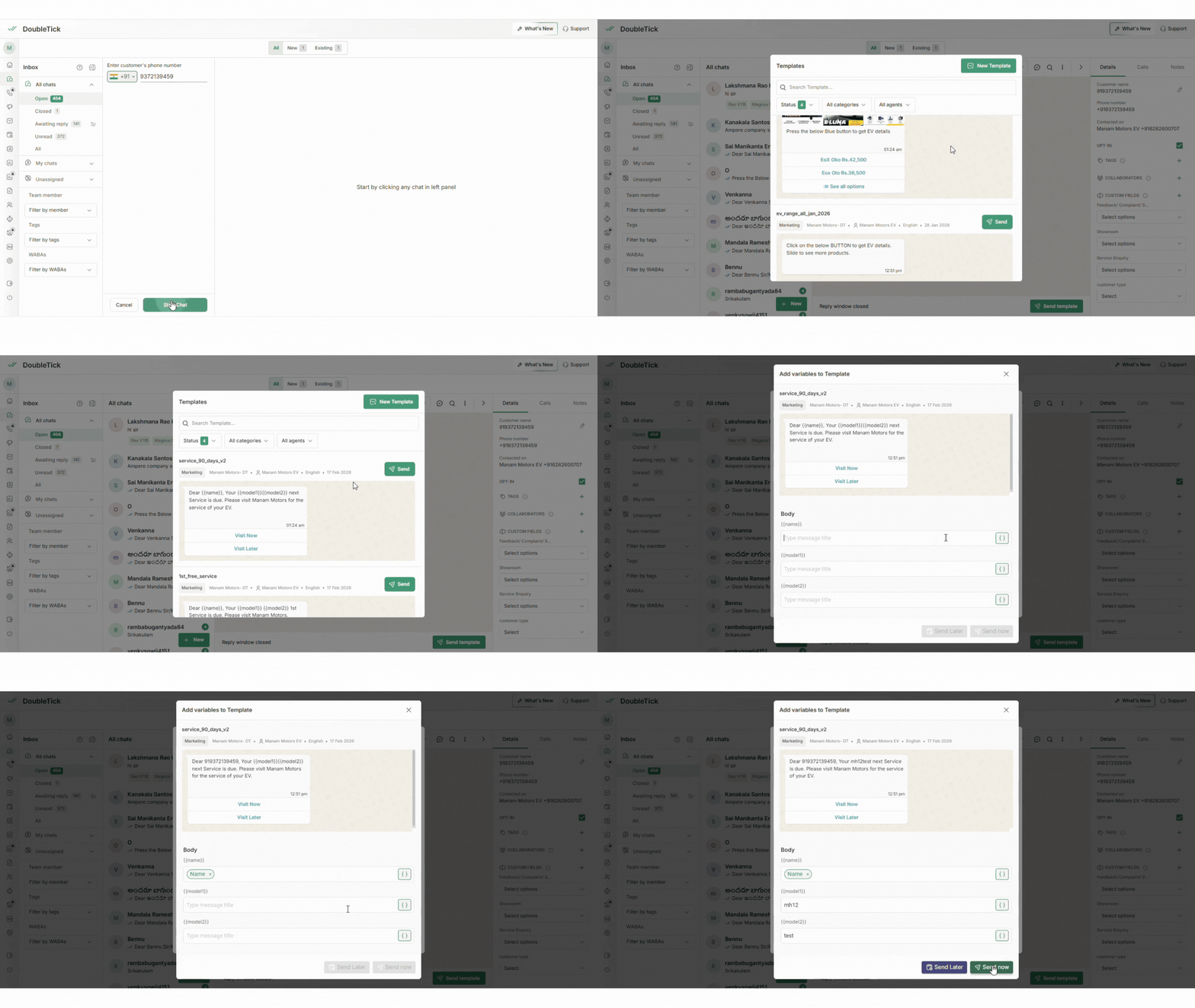
**Step 6: Send a template message if the conversation window is closed**\
If the 24-hour conversation window is closed, you'll need to send a WhatsApp template message to start the conversation:
* Click **Send Template** in the chat window.
* Select the template you want to send.
* Map the variables. **DoubleTick auto-fills any variable that matches an existing custom field** — for example, `{{Name}}`, `{{Phone Number}}`, `{{WhatsApp Name}}`, or any custom field you've set up — so you don't have to manually pick the same field every time. Variables with no matching custom field still show the manual picker.
* Send the template to the customer. Once the template is delivered and the customer replies, the conversation window becomes active.
#### Template pricing and wallet deduction
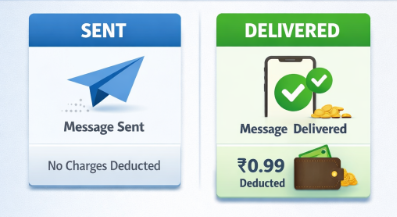
No charges are deducted when you **send** a template message. You’re charged only when the message is **successfully delivered** to the customer. For example, if a **Marketing Template** sent to an Indian phone number costs **₹0.99**, no charge is applied when the message is sent. The **₹0.99** charge is deducted from your wallet only after the message is delivered. You are not charged for messages that are sent but not delivered. Once the customer replies to your template, a new **24-hour conversation window** opens, allowing you to send free-form text, images, documents, and other supported message types without using another template. If the customer doesn’t reply and the window expires, you’ll need to send another approved template to restart the conversation.
#### Key takeaways
* Starting a fresh chat always requires an approved WhatsApp template as the first message.
* You can pick which WABA number sends the message if your account has more than one.
* DoubleTick auto-fills template variables that match your existing custom fields.
* Charges apply only when a template is **delivered**, not when it's sent.
* A customer reply to your template opens a new 24-hour window for free-form messaging.
#### FAQs
**Do I always need a template to start a chat?**\
Yes, if the customer hasn't messaged you within the last 24 hours. WhatsApp requires the first message in a fresh conversation to be an approved template.
**What if my account has multiple WhatsApp API numbers?**\
You can choose which number sends the message under **Send message via** by clicking **Change** and selecting the number you want.
**When am I charged for a template message?**\
Only when it's successfully **delivered** to the customer — not when it's sent.
**What happens if the customer doesn't reply to my template?**\
The conversation window never opens. You'll need to send another approved template to try again.
**Does DoubleTick fill in template variables automatically?**\
Yes, for any variable that matches an existing custom field, such as `{{Name}}` or `{{Phone Number}}`. Variables without a matching field still need to be picked manually.
#### **Suggested articles**
Understanding the 24-hour conversation window\
How to manage conversations\
Navigating the inbox: left panel overview\
How to assign chats\
What is WhatsApp opt-in and how to manage it
---
# Agent Instructions
This documentation is published with GitBook. GitBook is the documentation platform designed so that both humans and AI agents can read, navigate, and reason over technical content effectively. Learn more at gitbook.com.
## Querying This Documentation
If you need additional information that is not directly available in this page, you can query the documentation by asking a question.
Perform an HTTP GET request on the following URL with the `ask` and `goal` query parameters:
```
GET https://learn.doubletick.io/chat-management/start-and-manage-chats/how-to-start-a-chat-with-a-customer.md?ask=&goal=
```
`ask` is the immediate question: it should be specific, self-contained, and written in natural language.
`goal` is what the user is ultimately trying to achieve, the reason they need the answer. Sharing it helps GitBook give you a better, more relevant answer. A goal is most helpful when it describes the outcome the user wants rather than restating the question. For example, with `ask=how do I create an API token`, a goal like `automate deployments from our CI pipeline` lets GitBook tailor the answer to that use case.
The response will contain a direct answer to the question and relevant excerpts and sources from the documentation.
Use this mechanism when the answer is not explicitly present in the current page, you need clarification or additional context, or you want to retrieve related documentation sections.
.gif?alt=media&token=d8dc0588-0d70-404a-8182-9070c8a500c4)
.gif?alt=media&token=3e1fa21a-475b-4dfe-804a-86601f12a78e)