> For the complete documentation index, see [llms.txt](https://learn.doubletick.io/llms.txt). Markdown versions of documentation pages are available by appending `.md` to page URLs; this page is available as [Markdown](https://learn.doubletick.io/meta-business-setup/ecosystem/how-to-create-a-meta-business-portfolio.md).
# How to create a META business portfolio
Learn how to set up your Meta Business Portfolio — the central hub for managing your Facebook Pages, WhatsApp numbers, team members, and Ad Accounts before connecting to DoubleTick.
Setting up your Meta Business Portfolio is the first step toward using the WhatsApp Business API with DoubleTick — it's the central hub for managing your Facebook Pages, WhatsApp numbers, team members, and Ad Accounts, all in one place.
#### What's covered
* [What is a Meta Business Portfolio](#what-is-a-meta-business-portfolio)
* [Setting up your business portfolio](#setting-up-your-business-portfolio)
* [Verifying your business](#verifying-your-business)
* [Key takeaways](#key-takeaways)
* [Frequently asked questions](#frequently-asked-questions)
Even if you're not tech-savvy, don't worry — this guide walks you through everything step by step.
#### What is a Meta Business Portfolio
A Meta Business Portfolio (previously called Business Manager) is your company's verified business account inside Meta. It helps you:
* Keep all business assets organized
* Manage access for your team securely
* Connect your WhatsApp Business Account for DoubleTick integration
#### Setting up your business portfolio
**Step 1: Go to Meta Business**\
Open your browser and visit [business.facebook.com](https://business.facebook.com/), then log in using your [personal Facebook account](/meta-business-setup/ecosystem/how-to-create-a-facebook-account.md).
{% hint style="info" %}
Meta requires a personal Facebook login — this ensures real ownership and security.
{% endhint %}
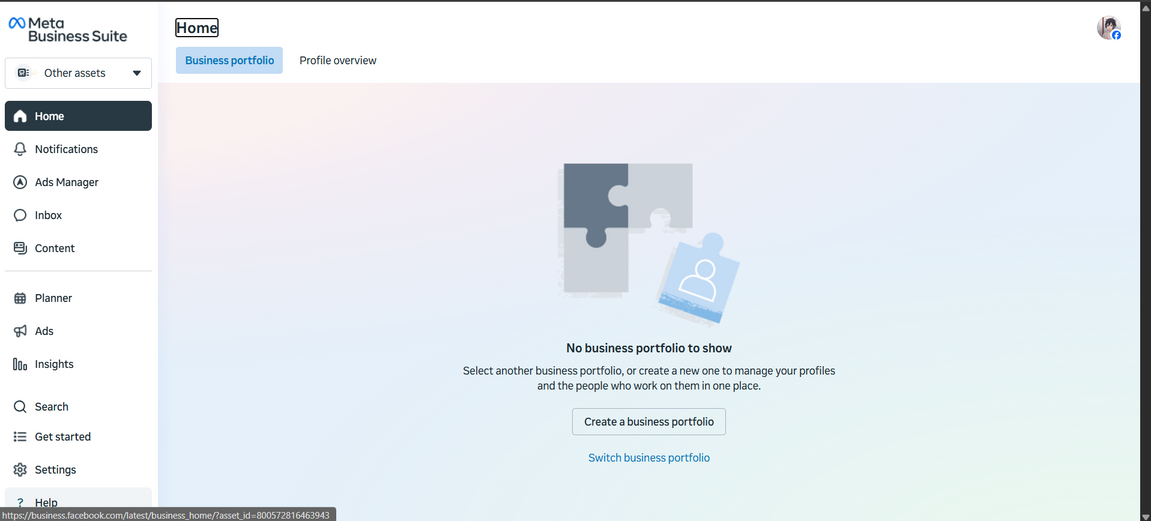
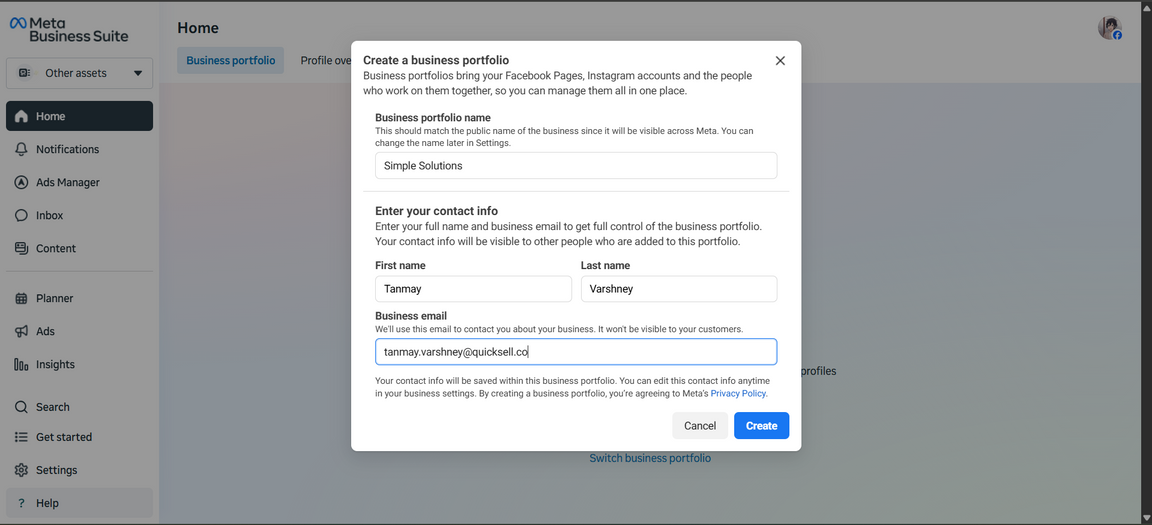
**Step 2: Create a business portfolio**\
Once logged in, click **Create a business portfolio**. Fill in the details: **Business Name** (use your company's registered name), **your full name**, and **business email address**. Click **Create**.
Your Meta Business Portfolio is created instantly.
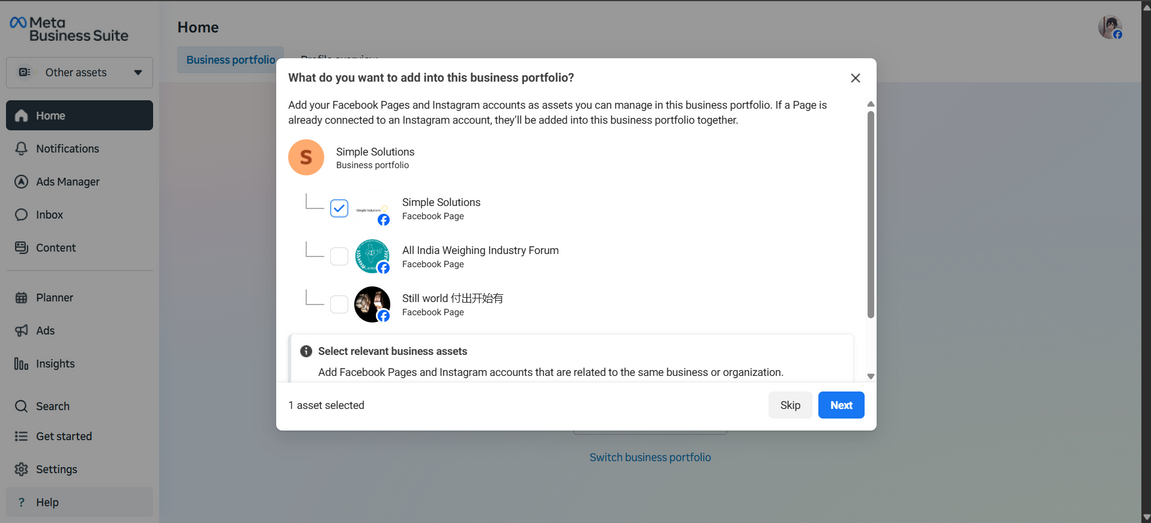
**Step 3: Add a Facebook page**\
In the left-hand menu, click **Business Settings**. Under **Accounts**, click **Pages → Add Page**, then select your existing [Facebook Page](/meta-business-setup/ecosystem/how-to-create-a-facebook-page.md) or create a new one.
{% hint style="info" %}
You can add more Pages later if you manage multiple brands.
{% endhint %}
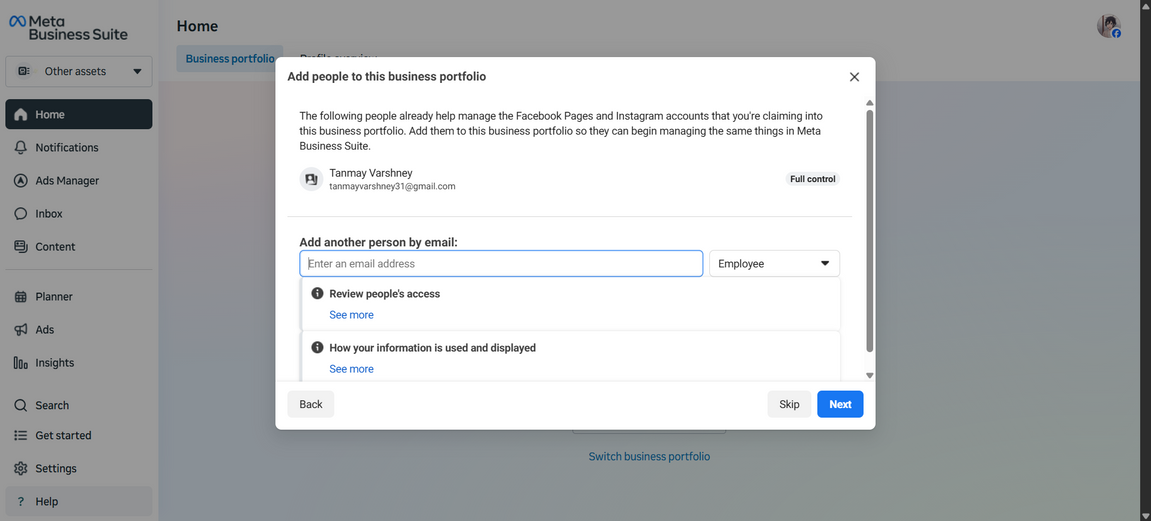
**Step 4: Invite your team members**\
If other people help you manage your business, you can invite them too. Go to **People → Add**, enter their **email address**, and assign their role — **Admin access** (full control and permissions) or **Employee access** (limited permissions for specific tasks). Click **Invite**, and your team member will receive an email invitation to join.
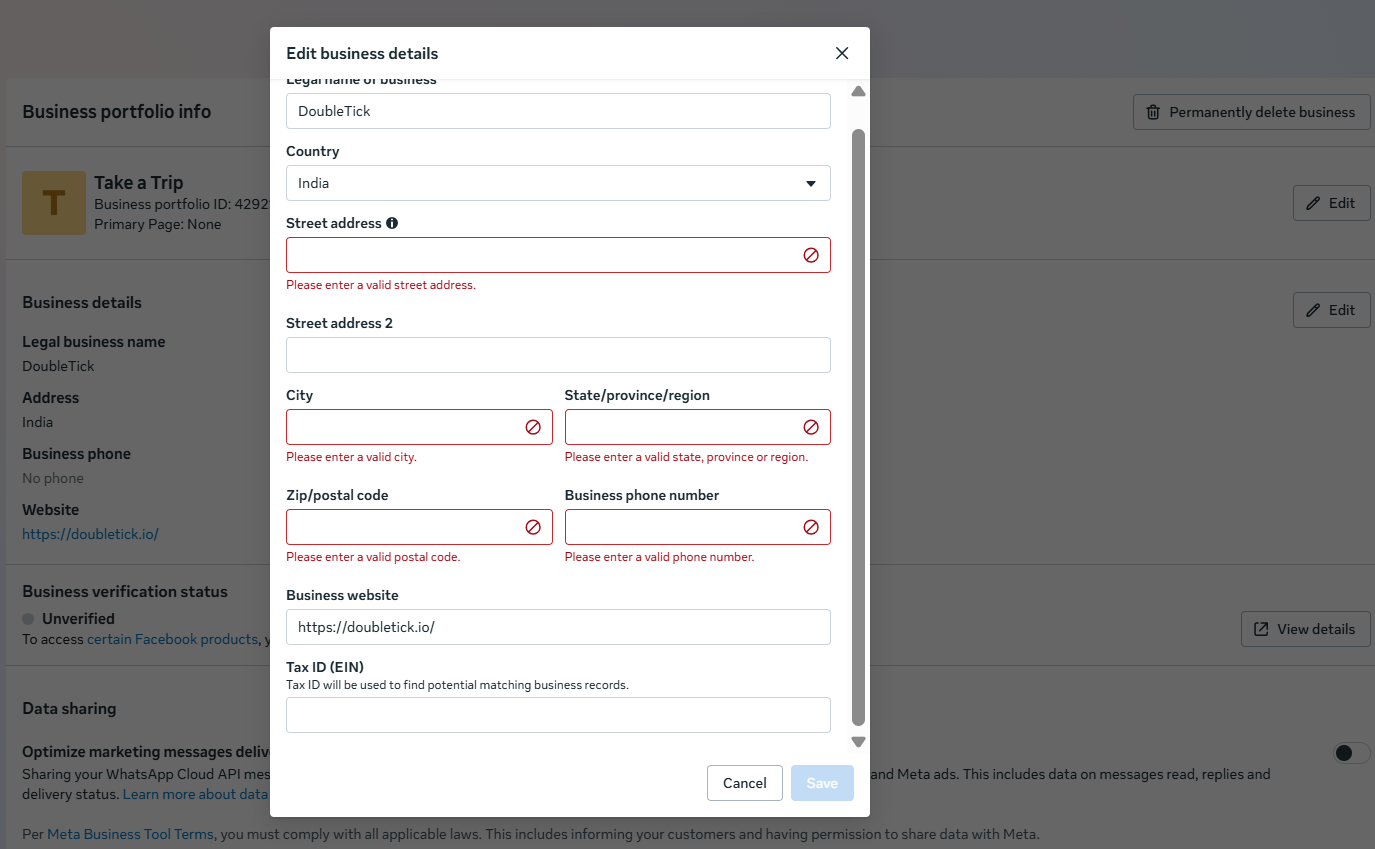
**Step 5: Add business details**\
It's important to add your official business information for verification. Go to **Business Settings → Business Info**, fill in your **legal business name, registered address, business phone number**, and **website** (if you have one), then click **Save Changes**.
{% hint style="info" %}
Make sure the details match your legal documents for smooth verification later.
{% endhint %}
#### Verifying your business
**Step 6:** [**Verify your business**](/meta-business-setup/meta-business-verification/how-to-verify-your-meta-business.md) **(highly recommended)**
* Meta may ask for verification to confirm your business identity. Go to **Security Center → Business Verification → Start Verification**, and upload documents such as a **Certificate of Incorporation or Business License**, a **utility bill or business bank statement**, and a **website URL or domain ownership proof**.
* Click **Submit**. Once approved, your business will be "Verified" — this unlocks access to advanced tools like the WhatsApp Business API, and your WhatsApp Business Account gets linked to your Meta Business Portfolio.
You've successfully created your Meta Business Portfolio. This is the foundation for connecting your Meta Developer App and completing your DoubleTick WhatsApp API setup — including your [Ad Account](/meta-business-setup/ecosystem/how-to-create-an-ad-account.md) for running ads.
#### Key takeaways
* A Meta Business Portfolio is your company's **verified business account** — the central hub for Pages, WhatsApp numbers, team access, and Ad Accounts.
* Creating one requires a **personal Facebook login** to ensure real ownership and security.
* You can add multiple **Facebook Pages** and invite team members with **Admin** or **Employee** access levels.
* Match your **business details** (name, address, phone, website) exactly to your legal documents to avoid verification delays.
* **Business Verification** unlocks advanced tools like the WhatsApp Business API — once approved, your WhatsApp account links to this portfolio.
#### Frequently asked questions
**Do I need a personal Facebook account to create a Business Portfolio?**\
Yes. Meta requires a personal Facebook login to ensure real ownership and security of the business account.
**Can I manage more than one brand from a single Business Portfolio?**\
Yes, you can add more Facebook Pages later if you manage multiple brands.
**What's the difference between Admin and Employee access?**\
Admin access gives full control and permissions. Employee access gives limited permissions for specific tasks only.
**What documents do I need for Business Verification?**\
A Certificate of Incorporation or Business License, a utility bill or business bank statement, and proof of your website URL or domain ownership.
**What happens after my business is verified?**\
Once approved, your business status becomes "Verified," unlocking advanced tools like the WhatsApp Business API, and your WhatsApp Business Account links to your Business Portfolio.
#### Related topics
* [How to create a facebook page](/meta-business-setup/ecosystem/how-to-create-a-facebook-page.md)
* [How to verify your META business](/meta-business-setup/meta-business-verification/how-to-verify-your-meta-business.md)
* [How to create an Ad account](/meta-business-setup/ecosystem/how-to-create-an-ad-account.md)
---
# Agent Instructions
This documentation is published with GitBook. GitBook is the documentation platform designed so that both humans and AI agents can read, navigate, and reason over technical content effectively. Learn more at gitbook.com.
## Querying This Documentation
If you need additional information that is not directly available in this page, you can query the documentation by asking a question.
Perform an HTTP GET request on the following URL with the `ask` and `goal` query parameters:
```
GET https://learn.doubletick.io/meta-business-setup/ecosystem/how-to-create-a-meta-business-portfolio.md?ask=&goal=
```
`ask` is the immediate question: it should be specific, self-contained, and written in natural language.
`goal` is what the user is ultimately trying to achieve, the reason they need the answer. Sharing it helps GitBook give you a better, more relevant answer. A goal is most helpful when it describes the outcome the user wants rather than restating the question. For example, with `ask=how do I create an API token`, a goal like `automate deployments from our CI pipeline` lets GitBook tailor the answer to that use case.
The response will contain a direct answer to the question and relevant excerpts and sources from the documentation.
Use this mechanism when the answer is not explicitly present in the current page, you need clarification or additional context, or you want to retrieve related documentation sections.
.gif?alt=media&token=ce61a367-8581-465b-8546-d92394ea114e)