> For the complete documentation index, see [llms.txt](https://learn.doubletick.io/llms.txt). Markdown versions of documentation pages are available by appending `.md` to page URLs; this page is available as [Markdown](https://learn.doubletick.io/enterprise-analytics/introduction-to-segmentation-report/business-use-cases-getting-the-most-out-of-segmentation-reports.md).
# Business Use Cases: Getting the Most Out of Segmentation Reports
The real power of Segmentation Reports lies not just in the metrics you select, but in how you combine them with filters and breakdowns to get precise, actionable answers. Here are practical examples that show how a business can use these reports to make better decisions.
#### **Use Case 1: Measuring Individual Agent Performance Across the Team**
***Scenario**:* A team leader wants to understand how each agent is performing in terms of response speed and chat volume over the past 30 days.
***How to build it:*** \
Create a Multi-Metric Report. \
Set the date range to Last 30 Days and the frequency to Per Day. \
Select Chats as the type of report. \
Choose the following metrics: New Chats, Chats Closed, First Response (Minimum), and Handling Time.
Then apply the Team Member filter and select the specific agent you want to evaluate.
***What this tells you:*** You get a day-by-day view of how many chats that agent received, how many they closed, how fast they sent their first reply, and how long it took them to fully resolve each conversation. Running this report for different agents allows you to compare performance across your team fairly and consistently.
***
#### **Use Case 2: Tracking Template Engagement Across a Campaign**
***Scenario**:* Your team recently ran a promotional campaign using a specific WhatsApp template. You want to know how that template performed over the campaign period.
***How to build it:***
Create a Multi-Metric Report. \
Set the date range to cover the campaign period. \
Select Chats as the type of report. \
Choose the following metrics: Chats with Template Sent, Chats with Template Delivered, Chats with Template Read, Chats with Template Failed, and Chats with CTA Button Clicked.\
Apply the Template filter and select the specific campaign template from the dropdown.
***What this tells you:*** You can see exactly how many customers received the template, how many opened it, how many clicked the CTA, and how many failed to receive it. This gives you a complete delivery and engagement picture for that one campaign template, which you can use to improve your next campaign.
***
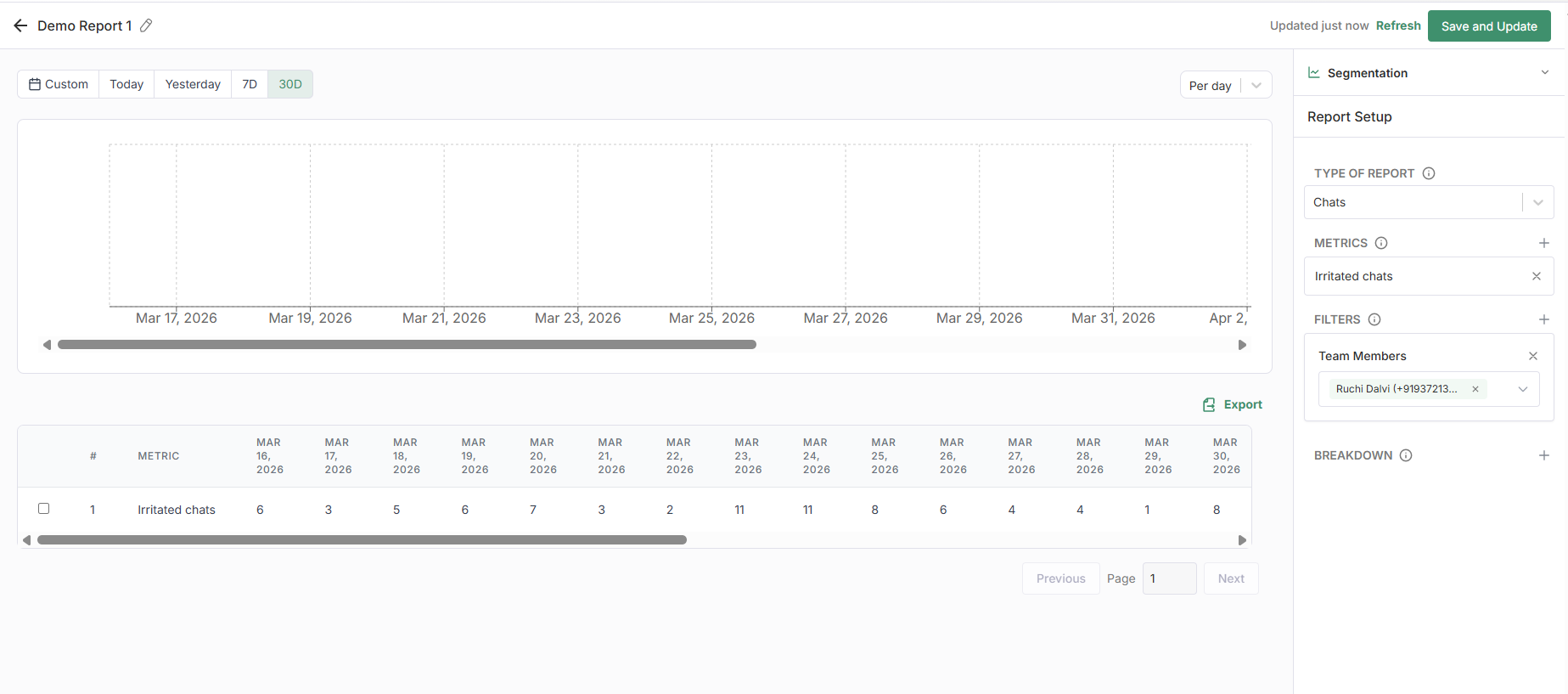
#### **Use Case 3: Spotting Patterns in Customer Frustration**
***Scenario**:* A support team wants to understand whether irritated chats are concentrated around specific agents or specific times of the month.
***How to build it**:* \
Create a Multi-Level Report. \
Set the date range to Last 30 Days and frequency to Per Day. \
Select Chats as the type of report and Irritated Chats as the metric. \
Apply the Team Member breakdown.
***What this tells you**:* You will see how irritated conversations are distributed across your agents for each day of the month. This can surface patterns — for example, whether certain agents consistently have a higher share of frustrated customers, or whether there are specific dates or periods where irritation spikes across the team. From there, you can investigate further using the Message Contains filter to look for conversations around a specific complaint keyword.
---
# Agent Instructions
This documentation is published with GitBook. GitBook is the documentation platform designed so that both humans and AI agents can read, navigate, and reason over technical content effectively. Learn more at gitbook.com.
## Querying This Documentation
If you need additional information that is not directly available in this page, you can query the documentation by asking a question.
Perform an HTTP GET request on the following URL with the `ask` and `goal` query parameters:
```
GET https://learn.doubletick.io/enterprise-analytics/introduction-to-segmentation-report/business-use-cases-getting-the-most-out-of-segmentation-reports.md?ask=&goal=
```
`ask` is the immediate question: it should be specific, self-contained, and written in natural language.
`goal` is what the user is ultimately trying to achieve, the reason they need the answer. Sharing it helps GitBook give you a better, more relevant answer. A goal is most helpful when it describes the outcome the user wants rather than restating the question. For example, with `ask=how do I create an API token`, a goal like `automate deployments from our CI pipeline` lets GitBook tailor the answer to that use case.
The response will contain a direct answer to the question and relevant excerpts and sources from the documentation.
Use this mechanism when the answer is not explicitly present in the current page, you need clarification or additional context, or you want to retrieve related documentation sections.