> For the complete documentation index, see [llms.txt](https://learn.doubletick.io/llms.txt). Markdown versions of documentation pages are available by appending `.md` to page URLs; this page is available as [Markdown](https://learn.doubletick.io/get-started-with-doubletick/migration/api-to-api-migration-guide.md).
# API to API migration guide
Learn how to migrate an existing WhatsApp Cloud API number from another API provider to DoubleTick while keeping the same phone number.
API to API migration is required when you want to move your existing WhatsApp Cloud API number from another API provider to DoubleTick. This process lets you retain the same phone number while changing your API provider.
{% hint style="warning" %}
Before starting, you must disable Two-Step Verification for your WhatsApp API number in Meta Business Manager — if it's enabled, migration may fail.
{% endhint %}
#### What's covered
* [When API to API migration is required](/get-started-with-doubletick/migration/api-to-api-migration-guide.md#when-is-api-to-api-migration-required)
* [Where to start in DoubleTick](/get-started-with-doubletick/migration/api-to-api-migration-guide.md#where-do-you-start-in-doubletick)
* [Step-by-step migration process](/get-started-with-doubletick/migration/api-to-api-migration-guide.md#step-by-step-migration-process)
* [Key takeaways](/get-started-with-doubletick/migration/api-to-api-migration-guide.md#key-takeaways)
* [Frequently asked questions](/get-started-with-doubletick/migration/api-to-api-migration-guide.md#frequently-asked-questions)
#### When is API to API migration required?
Use this process if:
* Your number is already on WhatsApp Cloud API.
* The number is not on the WhatsApp Business App.
* The number is not using Coexistence.
* You want to move your number from another BSP to DoubleTick.
#### Where do you start in DoubleTick
**Case 1: Fresh DoubleTick account (first number)**\
Log in using your phone number and OTP. The dashboard shows **Get Started** — clicking it begins onboarding immediately.
**Case 2: Existing DoubleTick account (additional channel)**\
Go to **Settings**, open **Manage Channels**, and click **Add Number** in the top-right corner. Once you reach **Add Number**, the process is the same for both cases.
#### Step-by-step migration process
**Step 1: Start Embedded Signup**\
In your DoubleTick dashboard, click Add number and select your preferred onboarding method.
**Step 2: Select the correct onboarding method**\
Choose Connect WhatsApp API number (Cloud API). This selection is mandatory for API-to-API migration.
**Step 3: Facebook integration flow**\
Click Continue as \[Your Name] to open Meta integration, review the onboarding details, and click Continue.
**Step 4: Select Business Portfolio**\
Choose your Meta Business Portfolio and click Next.
**Step 5: Select or create WhatsApp Business Account (WABA)**\
Select an existing WhatsApp Business Account (WABA) or create a new one, then click Next.
**Step 6: Create WhatsApp Business Profile**\
Enter your WhatsApp Business Account Name (internal name), WhatsApp Display Name (customer-facing), and select your business Category. Click Next.
{% hint style="warning" %}
Use the exact same Display Name and Category as your previous setup. Keeping them identical ensures message templates transfer properly, daily messaging limits stay intact, and Blue Tick verification (if applicable) transfers correctly. You can change these after migration is complete, but a mismatch risks templates, limits, or verification not migrating successfully.
{% endhint %}
**Step 7: Enter existing API number**\
Enter the exact phone number currently active with your previous BSP. Select your verification method (text message or phone call) and click Next.
**Step 8: Migration warning prompt**\
Review the warning indicating that continuing will move the number to DoubleTick and stop messaging on your previous BSP. Click Next to proceed.
**Step 9: OTP verification**\
Type the 6-digit verification code sent to your phone number and click Next.
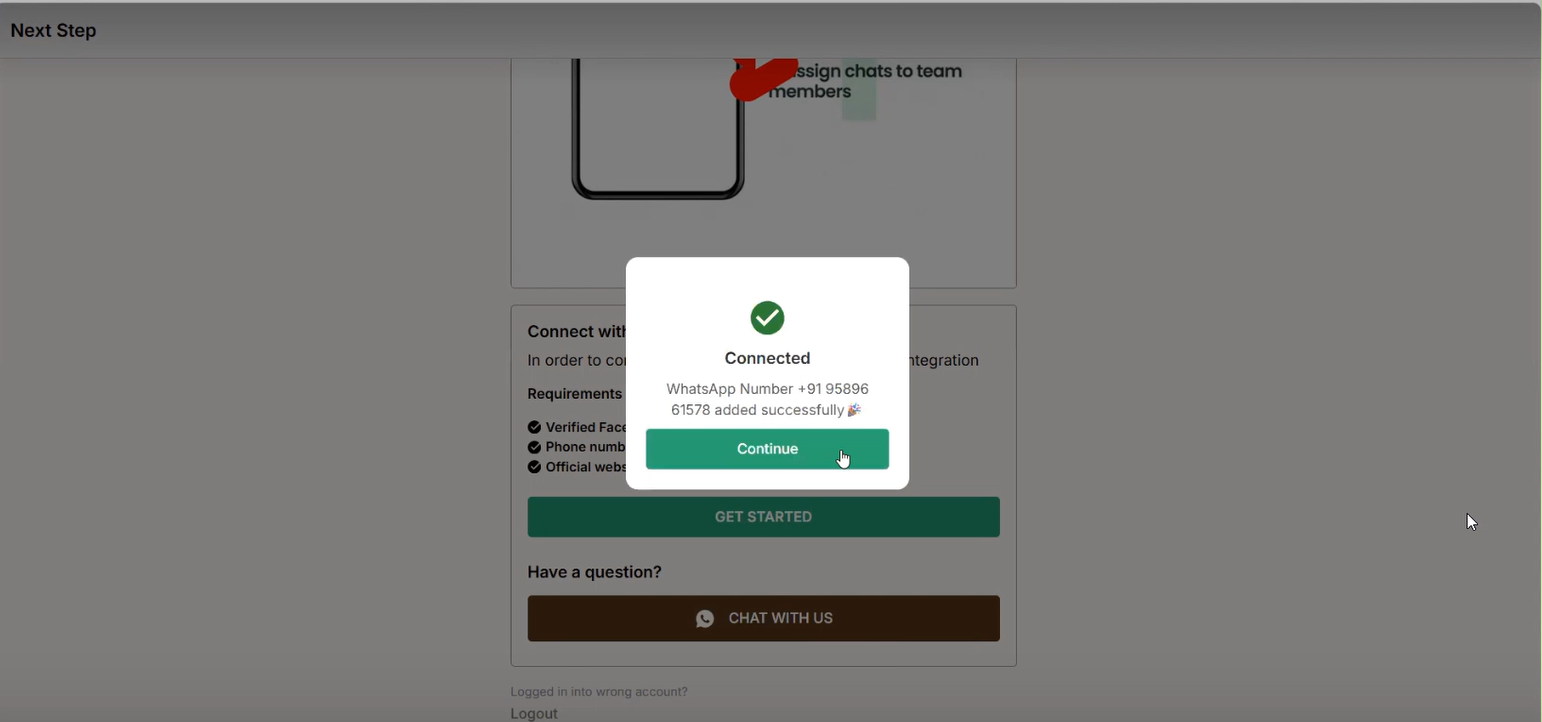
**Step 10: Migration complete**\
Verify that the connection status shows Connected. Your number is now active on DoubleTick, and previous BSP access is revoked automatically.
#### Key takeaways
* API to API migration lets you move an existing Cloud API number from another provider to DoubleTick without changing the phone number.
* You must disable Two-Step Verification in Meta Business Manager before starting, or migration may fail.
* Keep your Display Name and Category identical to your previous setup to preserve templates, messaging limits, and Blue Tick verification.
* Migration is irreversible — chat history does not migrate, and templates may need re-sync or re-approval.
#### Frequently asked questions
**Do I need to disable Two-Step Verification before migrating?**\
Yes. Disable it in Meta Business Manager before starting — migration may fail if it's still enabled.
**Will I keep the same phone number after migration?**\
Yes. API to API migration is designed to retain your existing phone number while switching your API provider to DoubleTick.
**Why does the Display Name and Category need to match my previous setup?**\
Keeping them identical helps message templates, daily messaging limits, and Blue Tick verification (if applicable) transfer correctly. You can change them after migration completes.
**Does my chat history transfer during API to API migration?**\
No. Chat history does not migrate during this process.
**Is API to API migration reversible?**\
No, migration is irreversible. Make sure you have customer consent and understand the impact before proceeding.
#### Related topics
* [How to disable two-step verification for your WhatsApp number](/meta-business-setup/two-factor-authentication/how-to-disable-two-step-verification-for-your-whatsapp-number.md)
* [How to change your display name](/meta-business-setup/display-name/how-to-change-your-display-name.md)
* [How to Manage Channels](/settings/how-to-manage-channels.md)
---
# Agent Instructions
This documentation is published with GitBook. GitBook is the documentation platform designed so that both humans and AI agents can read, navigate, and reason over technical content effectively. Learn more at gitbook.com.
## Querying This Documentation
If you need additional information that is not directly available in this page, you can query the documentation by asking a question.
Perform an HTTP GET request on the following URL with the `ask` and `goal` query parameters:
```
GET https://learn.doubletick.io/get-started-with-doubletick/migration/api-to-api-migration-guide.md?ask=&goal=
```
`ask` is the immediate question: it should be specific, self-contained, and written in natural language.
`goal` is what the user is ultimately trying to achieve, the reason they need the answer. Sharing it helps GitBook give you a better, more relevant answer. A goal is most helpful when it describes the outcome the user wants rather than restating the question. For example, with `ask=how do I create an API token`, a goal like `automate deployments from our CI pipeline` lets GitBook tailor the answer to that use case.
The response will contain a direct answer to the question and relevant excerpts and sources from the documentation.
Use this mechanism when the answer is not explicitly present in the current page, you need clarification or additional context, or you want to retrieve related documentation sections.
%20(1).gif?alt=media&token=82ec05c2-0451-4f93-9599-06a92e3e7d27)
%20(1).gif?alt=media&token=c61304e8-a95d-4ed6-ada4-9acd089e8b44)
.gif?alt=media&token=790ecf90-d5bb-490e-9666-f4906e91ce81)
.gif?alt=media&token=03ea8662-46f4-4681-9600-b1da13e60b4a)
.gif?alt=media&token=79e106af-e009-4bcf-a918-a14cf29292c2)
.gif?alt=media&token=ae94e04a-1c99-4a0f-86a0-241baf22e8a9)
.gif?alt=media&token=8bebede1-a9f0-4624-b991-403f1dfa8f58)