> For the complete documentation index, see [llms.txt](https://learn.doubletick.io/llms.txt). Markdown versions of documentation pages are available by appending `.md` to page URLs; this page is available as [Markdown](https://learn.doubletick.io/get-started-with-doubletick/onboarding/how-to-onboard-a-phone-number-on-cloud-api.md).
# How to onboard a phone number on Cloud API
Learn how to onboard a WhatsApp phone number onto DoubleTick using Meta's Cloud API, from logging into the platform to confirming a successful connection.
Onboarding a phone number onto DoubleTick using **Meta's Cloud API** is the first step toward enabling advanced WhatsApp Business capabilities. Once activated, the number can support **large-volume messaging**, **automated workflows**, **structured templates**, and **professional multi-user management**. To ensure smooth onboarding for both customers and support teams, this guide breaks down the entire flow into simple, executable steps. Make sure you've reviewed the [prerequisites for onboarding](/get-started-with-doubletick/prerequisites-for-onboarding.md) before you begin.
#### What's covered
* [Onboarding process](/get-started-with-doubletick/onboarding/how-to-onboard-a-phone-number-on-cloud-api.md#step-by-step-guide-to-onboarding-a-phone-number-on-cloud-api)
* [Key takeaways](/get-started-with-doubletick/onboarding/how-to-onboard-a-phone-number-on-cloud-api.md#key-takeaways)
* [Frequently asked questions](/get-started-with-doubletick/onboarding/how-to-onboard-a-phone-number-on-cloud-api.md#faqs)
#### Step-by-step guide to onboarding a phone number on Cloud API
**Step 1: Access the DoubleTick web platform**\
Open Google Chrome (recommended for best compatibility) and visit:
A login screen will appear requesting your **login number**. If you don't know your login number, your **Account Manager** can provide it. After entering the login number, click the **Login** button (green).
**Step 2: Complete OTP validation**\
DoubleTick sends an OTP to your login number via SMS. Enter the OTP and click **Login** again to authenticate.
{% hint style="warning" %}
**Enable pop-ups** in your browser before initiating the onboarding process, as Meta's integration flows open in pop-up windows. Blocking pop-ups can interrupt the onboarding midway.
{% endhint %}
**Step 3: Initiate onboarding**\
Scroll down and click the green **Get started** button. This triggers the onboarding initiation within the DoubleTick portal.
**Step 4: Select your onboarding path**\
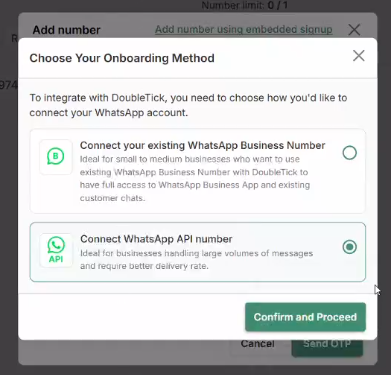
The system will prompt you to choose an onboarding method. Select **Connect WhatsApp API Number** — this means you're building a Cloud API integration, not a [coexistence setup](https://learn.doubletick.io/get-started-with-doubletick/onboarding/how-to-onboard-a-whatsapp-business-phone-number-on-coex). Click **Confirm and proceed**.
**Step 5: Complete the Facebook integration window**\
The interface will redirect to Facebook for authorization and sharing of required business assets. Don't have a Facebook account yet? See [how to create a Facebook account](https://learn.doubletick.io/ecosystem/how-to-create-a-facebook-account). Click **Continue** on the Facebook screen. This gives DoubleTick permission to connect with your business portfolio and WABA components under Meta.
**Step 6: Choose the relevant business portfolio**\
You'll see a dropdown listing business portfolios associated with your Meta account. If there are multiple portfolios, carefully choose the correct one, since onboarding links the number to that business profile within Meta Business Suite. If you don't have a business portfolio yet, see [how to create a Meta Business Portfolio](https://learn.doubletick.io/ecosystem/how-to-create-a-meta-business-portfolio).
**Step 7: Create a WhatsApp Business Account (WABA)**\
In the next dropdown, select **Create a WhatsApp Business Account** — this applies because you're onboarding the number on Cloud API for the **first time**. Click **Next**.
**Step 8: Enter business information**\
Meta now requests details required for compliance and WABA provisioning — **business name** (as recognized legally), **business category**, **country**, **business website URL**, and **time zone**. Enter accurate details and click **Next**. This data influences messaging limits, display name reviews, and compliance approvals downstream.
**Step 9: Add a WhatsApp phone number**\
You'll see two options — **User display name only** or **Add new number** (choose this). Click **Add new number**, then enter the phone number you want to connect to DoubleTick.
{% hint style="warning" %}
Make sure the number is **not active** on the WhatsApp ecosystem. Meta blocks active numbers during onboarding and will throw errors if detected.
{% endhint %}
**Step 10: Verify the phone number (OTP)**\
Meta will ask how you want the verification OTP delivered — **text message** or **phone call**. Select your preferred method and click **Next**. Enter the OTP once it arrives and click **Next** to verify.
**Step 11: Confirm and connect**\
Click the blue **Confirm** button. Meta will show a loading screen reading "Connecting to your account — this may take a few moments." This step provisions the number on Cloud API and connects it to the WABA and business portfolio you selected. Once the integration completes, a status screen confirms your number is connected with **doubletick.io**. Click **Finish**.
**Step 12: Check the final status on DoubleTick**\
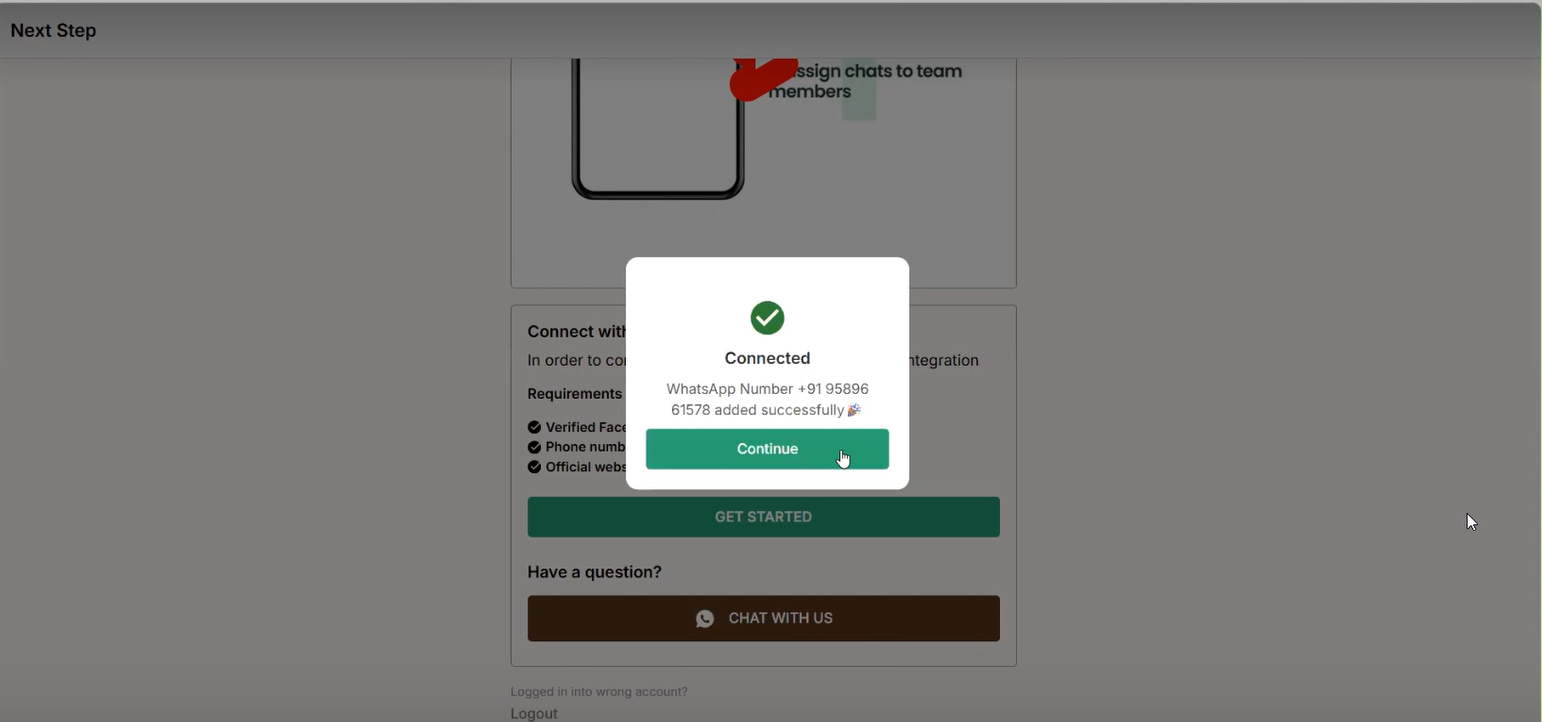
Return to the DoubleTick portal. The system will finalize integration tasks, after which it displays **Connected successfully**. Your number is now active on DoubleTick Cloud API and ready for use. If you face delays, errors, or compliance blocks, DoubleTick Support and Account Managers can assist.
#### Key takeaways
* Onboarding a number via Cloud API connects it to Meta's official WhatsApp infrastructure for **enterprise-grade**, secure messaging.
* You'll need your DoubleTick **login number**, OTP access, and **pop-ups enabled** before you start.
* The number must **not** be active anywhere else on WhatsApp when you begin onboarding.
* If you face delays, errors, or compliance blocks, **DoubleTick Support** and your **Account Manager** can help.
#### FAQs
What is my login number, and where do I find it?
Your login number is the number you use to sign in to the DoubleTick web platform. If you don't have it, your Account Manager can share it with you.
Why do I need to enable pop-ups before starting onboarding?
Meta's integration flows — Facebook authorization, business portfolio selection, WABA creation — open in pop-up windows. If your browser blocks pop-ups, the onboarding process can get interrupted midway.
Can I onboard a number that's already active on WhatsApp?
No. The number must not be active on the WhatsApp ecosystem before onboarding. Meta blocks active numbers and throws errors if one is detected. Check the \[prerequisites for onboarding]\() for the full number-readiness rules.
What if I have multiple business portfolios in Meta?
You'll see all portfolios linked to your Meta account in a dropdown. Choose the correct one carefully, since the number gets linked to that specific business profile in Meta Business Suite.
What should I do if onboarding fails or gets delayed?
Reach out to DoubleTick Support or your Account Manager — they can help resolve compliance blocks, errors, or delays during onboarding.
#### Related articles
{% content-ref url="/spaces/53n17VnOICC1LtDqlENV/pages/CwPxDpJYofU3cls2poVZ" %}
[Prerequisites for Onboarding](/get-started-with-doubletick/prerequisites-for-onboarding.md)
{% endcontent-ref %}
{% content-ref url="/spaces/53n17VnOICC1LtDqlENV/pages/oFOoVJ1o0avtVli7L6mV" %}
[Onboard an additional WABA on Cloud API](/get-started-with-doubletick/onboarding/onboard-an-additional-waba-on-cloud-api.md)
{% endcontent-ref %}
{% content-ref url="/spaces/53n17VnOICC1LtDqlENV/pages/QQZiCy9UeP3sZoy48h5g" %}
[How to change your display name](/meta-business-setup/display-name/how-to-change-your-display-name.md)
{% endcontent-ref %}
---
# Agent Instructions
This documentation is published with GitBook. GitBook is the documentation platform designed so that both humans and AI agents can read, navigate, and reason over technical content effectively. Learn more at gitbook.com.
## Querying This Documentation
If you need additional information that is not directly available in this page, you can query the documentation by asking a question.
Perform an HTTP GET request on the following URL with the `ask` and `goal` query parameters:
```
GET https://learn.doubletick.io/get-started-with-doubletick/onboarding/how-to-onboard-a-phone-number-on-cloud-api.md?ask=&goal=
```
`ask` is the immediate question: it should be specific, self-contained, and written in natural language.
`goal` is what the user is ultimately trying to achieve, the reason they need the answer. Sharing it helps GitBook give you a better, more relevant answer. A goal is most helpful when it describes the outcome the user wants rather than restating the question. For example, with `ask=how do I create an API token`, a goal like `automate deployments from our CI pipeline` lets GitBook tailor the answer to that use case.
The response will contain a direct answer to the question and relevant excerpts and sources from the documentation.
Use this mechanism when the answer is not explicitly present in the current page, you need clarification or additional context, or you want to retrieve related documentation sections.
.gif?alt=media&token=9210a06d-1c63-4b05-8d3a-2d4befbf46b6)
.gif?alt=media&token=739bffad-2d85-404b-a378-980534328400)
.gif?alt=media&token=db70bbc3-6839-43f3-b087-390814cf1c90)