> For the complete documentation index, see [llms.txt](https://learn.doubletick.io/llms.txt). Markdown versions of documentation pages are available by appending `.md` to page URLs; this page is available as [Markdown](https://learn.doubletick.io/meta-business-setup/display-picture/how-to-change-your-display-picture-in-fbm.md).
# How to change your display picture in FBM
Learn how to update your WhatsApp API display image directly from Meta's WhatsApp Manager, for when you need source-level control.
A step-by-step guide to updating your WhatsApp API display image directly from Meta's WhatsApp Manager, for when you need source-level control.
#### What's covered
* [Image requirements](#image-requirements)
* [If your image isn't the correct size](#if-your-image-isnt-the-correct-size)
* [Upload via Facebook Business account](#upload-via-facebook-business-account)
* [Troubleshooting and tips](#troubleshooting-and-tips)
* [Best practices for business display images](#best-practices-for-business-display-images)
* [Key takeaways](#key-takeaways)
#### Image requirements
Before uploading your image, make sure it meets the official WhatsApp Business API standards.
| Requirement | Details |
| -------------------------- | ---------------- |
| **Supported file formats** | .jpg, .png, .svg |
| **Maximum file size** | 5 MB |
| **Recommended dimensions** | 640 × 640 pixels |
{% hint style="warning" %}
Images that are too large, too small, or in the wrong format may fail to upload or appear blurry once published.
{% endhint %}
#### If your image isn't the correct size
If your logo or image isn't exactly 640 × 640 pixels, you can easily fix it before uploading.
**Option 1: Use ChatGPT to resize**
Simply share your image with ChatGPT and ask it to resize the image to 640 × 640 pixels for WhatsApp API. It will adjust it instantly and send you the optimized version.
**Option 2: Use the iLoveIMG resize tool**
If you'd like to do it manually:
1. Go to the [iLoveIMG Resize Tool](https://www.iloveimg.com/resize-image).
2. Upload your logo or image.
3. **Untick** the box that says *Maintain aspect ratio*.
4. Enter **Width: 640** and **Height: 640**.
5. Click **Resize Image** and download the resized version.
Your image is now ready to upload.
#### Upload via Facebook Business account
If you manage your WhatsApp account through Meta Business Manager, you can also update your display image directly in WhatsApp Manager. This is a good alternative if you'd rather use [Facebook Business Manager instead of the DoubleTick Dashboard](/meta-business-setup/display-picture/how-to-change-your-display-image.md) for this.
**Step 1: Log in to Your Facebook Business Account**\
Log in using the Facebook Business account connected to your DoubleTick WhatsApp number.
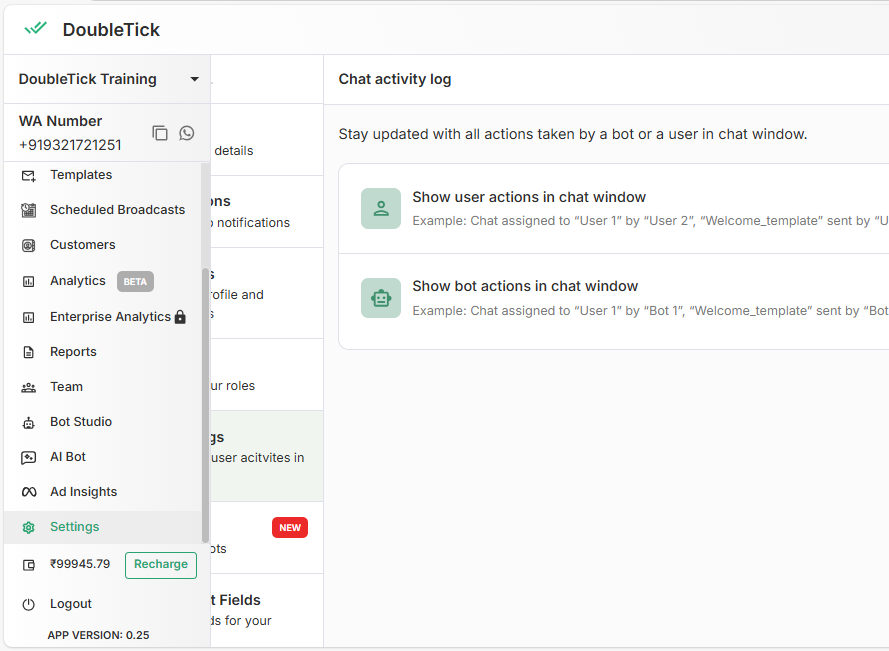
**Step 2: Open Settings > Manage WABAs on DoubleTick**\
In your DoubleTick Dashboard, open **Settings → Manage WABAs**. Again, make sure you have **Admin/Owner** access.
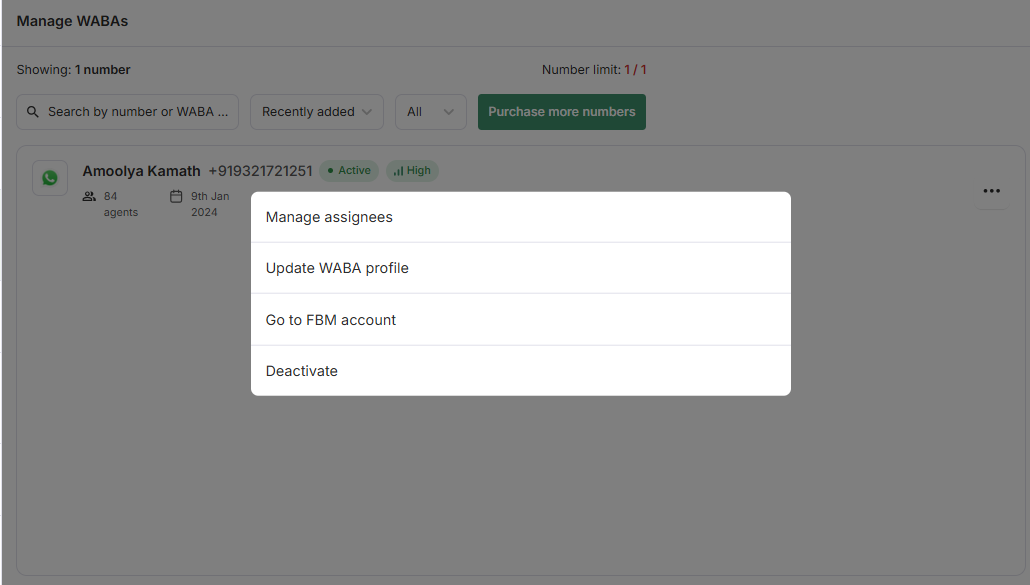
**Step 3: Go to Your FBM Account**\
Next to your WABA number, click the three dots (⋮) and select **Go to FBM Account**. This will redirect you to your Meta WhatsApp Manager.
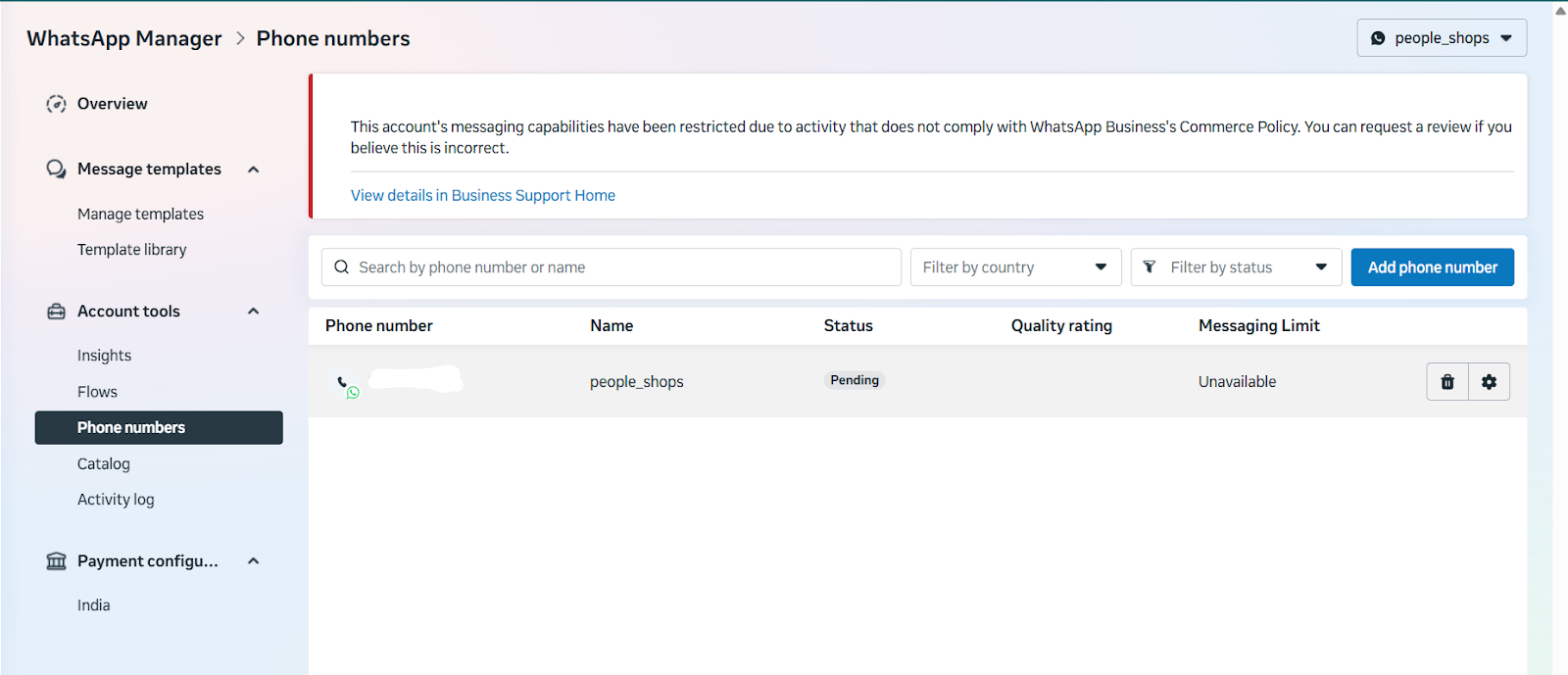
**Step 4: Go to the Phone Numbers Section**\
In WhatsApp Manager, navigate to **Phone Numbers**.
**Step 5: Select Your DoubleTick API Number**\
Choose the number whose display image you want to update.
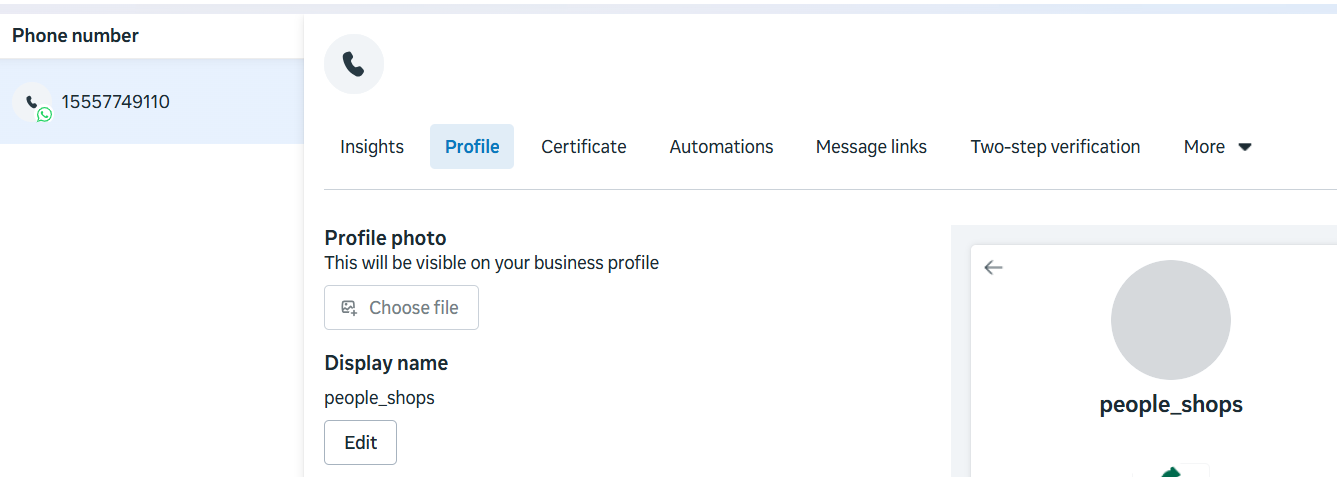
**Step 6: Click the Profile Tab**
**Step 7: Choose Your File Under Profile Photo** Click **Choose File** under **Profile Photo**.
**Step 8: Upload Your Image**\
Upload your 640 × 640 pixel image.
**Step 9: Click Save Changes**\
That's it — your new logo will now update on your WhatsApp Business API profile.
{% hint style="info" %}
Profile images usually update within **5 minutes**, but Meta's system may take a few hours to fully propagate the change across WhatsApp's network.
{% endhint %}
#### Troubleshooting and tips
If your new logo doesn't appear right away:
* Wait for a few hours — image updates are cached and take time to sync.
* Ensure the image meets all requirements (format, size, and dimensions).
* Avoid uploading images with transparent backgrounds — WhatsApp sometimes displays them incorrectly.
* If you still don't see the update after 24 hours, contact DoubleTick Support for assistance.
#### Best practices for business display images
1. **Use a recognizable logo:** it should clearly represent your brand — avoid text-heavy or busy images.
2. **Center your logo:** make sure the main element fits neatly within a circle when cropped.
3. **Stick to your brand colors:** consistency across your website, social media, and WhatsApp helps customers trust your business.
4. **Avoid low-resolution files:** blurry or pixelated images can appear unprofessional.
Your display image is often your customer's first visual impression of your business on WhatsApp. By keeping it properly sized, clear, and consistent, you ensure that every message sent through your DoubleTick API number reflects professionalism and trust. Whether you upload it through the DoubleTick Dashboard or your Facebook Business Account, these small steps go a long way in strengthening your brand identity across WhatsApp.
#### Key takeaways
* Your image must be .jpg, .png, or .svg, under 5 MB, and ideally 640 × 640 pixels.
* Resize using ChatGPT or the iLoveIMG tool before uploading if the dimensions are off.
* You can update the display image directly from Meta's WhatsApp Manager via Phone Numbers > Profile > Profile Photo.
* You'll need Admin/Owner access on your DoubleTick account to navigate to the FBM account.
* Updates usually reflect within 5 minutes but can take a few hours to fully propagate.
#### FAQs
**Can I update my display image directly from Facebook Business Manager instead of DoubleTick?**\
Yes. You can go through your DoubleTick Dashboard to reach the FBM Account, then update the profile photo directly inside WhatsApp Manager under the Profile tab.
**What access do I need to reach the FBM Account from DoubleTick?**\
You need Admin/Owner access on your DoubleTick account to use the "Go to FBM Account" option under Manage WABAs.
**How long does it take for the change to reflect on WhatsApp?**\
Profile images usually update within 5 minutes, but Meta's system can take a few hours to fully propagate the change across its network.
**What image specifications does WhatsApp Manager expect?**\
The same as DoubleTick: .jpg, .png, or .svg format, under 5 MB, and ideally 640 × 640 pixels.
**My logo still hasn't updated after a day — what should I do?**\
First confirm the image meets all format and size requirements and avoid transparent backgrounds. If it still hasn't updated after 24 hours, reach out to DoubleTick Support.
#### Related topics
* [Display picture guide](/meta-business-setup/display-picture/display-picture-guide.md)
* [How to change your display image](/meta-business-setup/display-picture/how-to-change-your-display-image.md)
* [How to create a META business portfolio](/meta-business-setup/ecosystem/how-to-create-a-meta-business-portfolio.md)
---
# Agent Instructions
This documentation is published with GitBook. GitBook is the documentation platform designed so that both humans and AI agents can read, navigate, and reason over technical content effectively. Learn more at gitbook.com.
## Querying This Documentation
If you need additional information that is not directly available in this page, you can query the documentation by asking a question.
Perform an HTTP GET request on the following URL with the `ask` and `goal` query parameters:
```
GET https://learn.doubletick.io/meta-business-setup/display-picture/how-to-change-your-display-picture-in-fbm.md?ask=&goal=
```
`ask` is the immediate question: it should be specific, self-contained, and written in natural language.
`goal` is what the user is ultimately trying to achieve, the reason they need the answer. Sharing it helps GitBook give you a better, more relevant answer. A goal is most helpful when it describes the outcome the user wants rather than restating the question. For example, with `ask=how do I create an API token`, a goal like `automate deployments from our CI pipeline` lets GitBook tailor the answer to that use case.
The response will contain a direct answer to the question and relevant excerpts and sources from the documentation.
Use this mechanism when the answer is not explicitly present in the current page, you need clarification or additional context, or you want to retrieve related documentation sections.