> For the complete documentation index, see [llms.txt](https://learn.doubletick.io/llms.txt). Markdown versions of documentation pages are available by appending `.md` to page URLs; this page is available as [Markdown](https://learn.doubletick.io/meta-business-setup/ecosystem/how-to-create-a-facebook-account.md).
# How to create a facebook account
Learn how to create and secure a personal Facebook account — the first step toward setting up your Meta Business tools, running ads, and connecting WhatsApp Business API through DoubleTick.
Creating a Facebook account is the first step toward building your business identity on Meta — you'll need it before you can set up a Page, a Business Portfolio, or connect the WhatsApp Business API through DoubleTick.
#### What's covered
* [Why you need a Facebook account](#why-you-need-a-facebook-account)
* [Step-by-step guide to creating a Facebook account](#step-by-step-guide-to-creating-a-facebook-account)
* [Best practices for business users](#best-practices-for-business-users)
* [Key takeaways](#key-takeaways)
* [Frequently asked questions](#frequently-asked-questions)
Whether you plan to run Facebook or Instagram ads, create and manage a business page, verify your business in Meta Business Suite, or connect WhatsApp Business API via DoubleTick — you must first create and verify a Facebook account. This guide walks you through the complete process, from account creation to security setup.
#### Why you need a Facebook account
Your Facebook account acts as your personal identity on Meta's ecosystem. It's required to access all business tools. With a Facebook account, you can:
* Create and manage your [Facebook Business Page](/meta-business-setup/ecosystem/how-to-create-a-facebook-page.md)
* Access Meta Business Suite or set up your [Meta Business Portfolio](/meta-business-setup/ecosystem/how-to-create-a-meta-business-portfolio.md)
* Complete [Meta Business Verification](/meta-business-setup/meta-business-verification/how-to-verify-your-meta-business.md)
* Grant access to team members, agencies, or partners like DoubleTick
* Create and manage a Meta Developer App for WhatsApp API
{% hint style="info" %}
Facebook allows only one personal account per individual. Creating multiple accounts may result in suspension or permanent disablement.
{% endhint %}
#### Step-by-step guide to creating a Facebook account
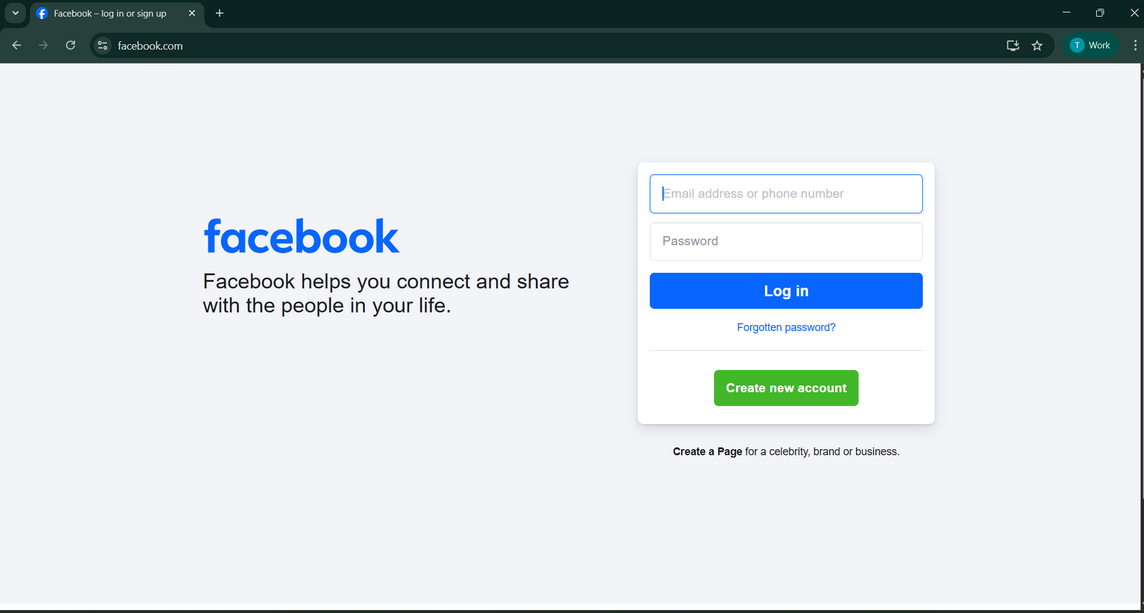
**Step 1: Open the Facebook website**\
Open a browser and go to **facebook.com**. On the homepage, click **Create new account**.For best results, create your account using a desktop browser or the official Facebook mobile app. Avoid third-party websites.
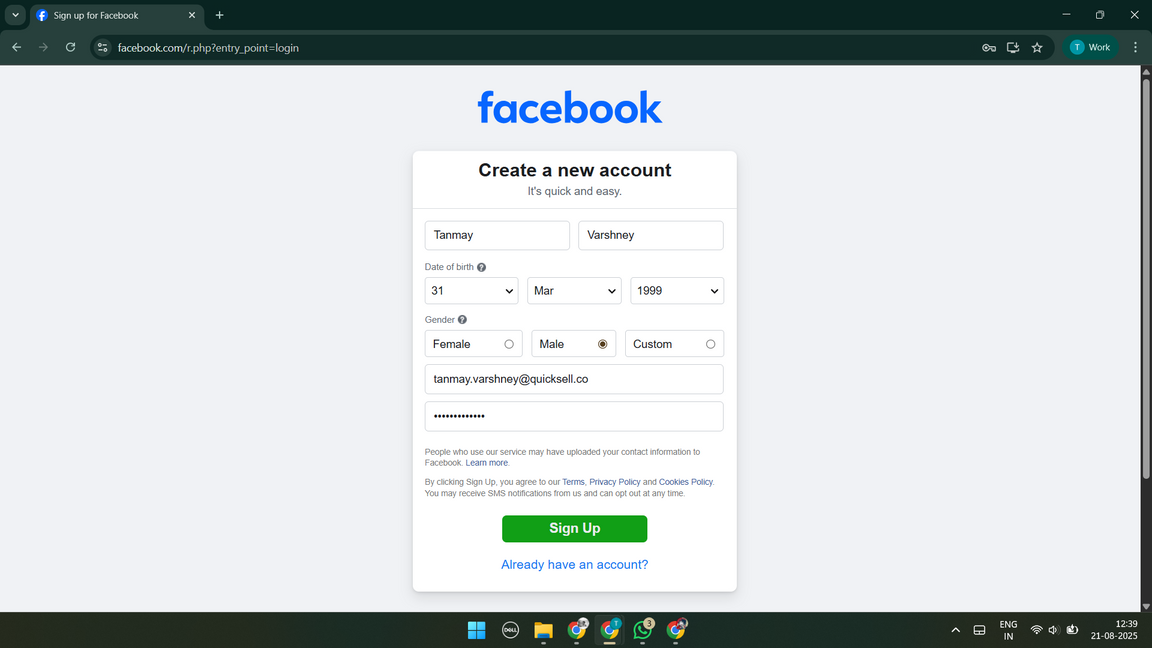
**Step 2: Enter your basic information**\
Fill in your **first name, surname, mobile number or email address, password, date of birth, and gender**. Make sure the details are accurate and the contact information is active. Once done, click **Sign Up**. Use a **personal email address** instead of a shared company email. This ensures you retain ownership and access to your Meta identity.
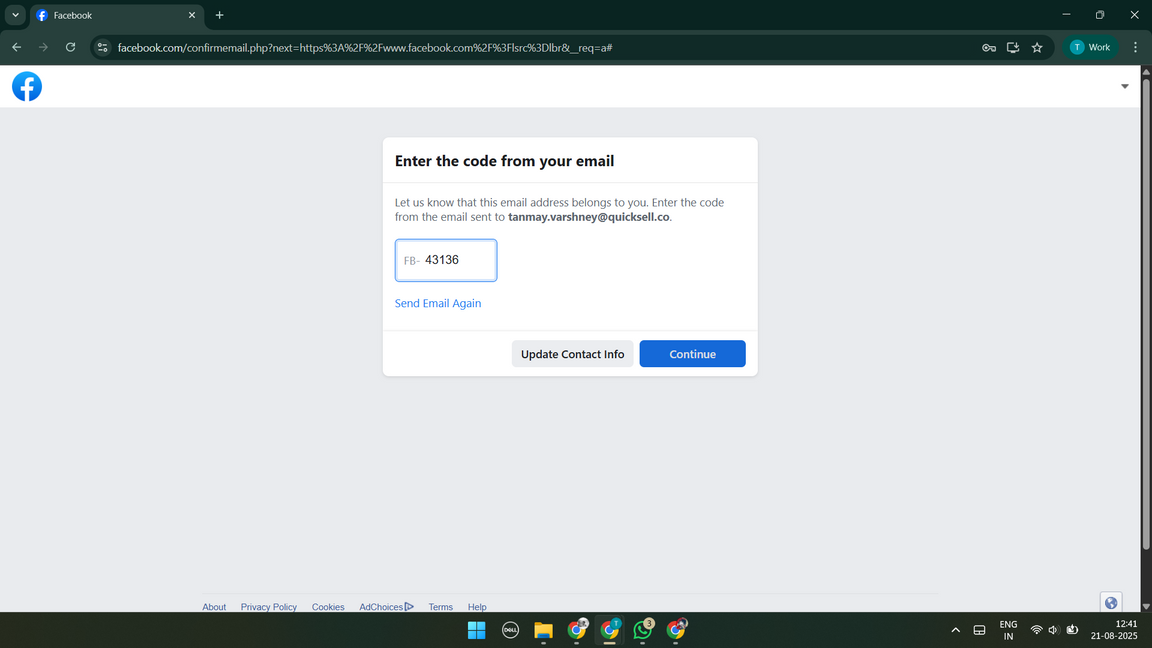
**Step 3: Verify your email or mobile number**\
After you click **Sign Up**, Facebook sends a verification code (**OTP**) to your registered email or mobile number. Enter the code and click **Continue** or **Confirm** to complete verification. If you don't receive the code, click **Resend Code** and check your spam or junk folder (if using email). Once verified, your Facebook account becomes active.
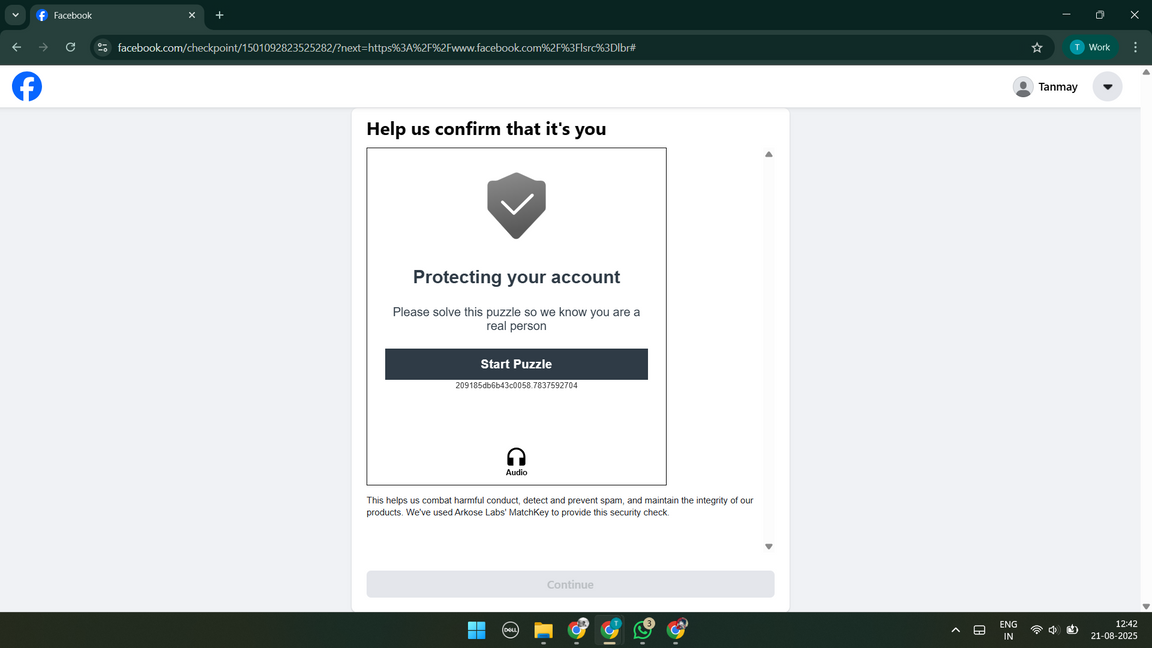
**Step 4: Complete security verification (if prompted)**\
In some cases, Facebook may request additional verification steps, such as completing a **captcha**, confirming recent activity, or (rarely) uploading identification. Follow the on-screen instructions to complete it. This is common if you're signing up from an office network, using a shared device, or if Facebook detects unusual activity — these checks help prevent fake or duplicate accounts.
**Step 5: Set up your profile**\
After verification, Facebook may guide you through basic profile setup. It's optional, but completing some details helps establish credibility. For business use, you can upload your company logo or a professional photo as your **profile picture**, and add a banner image representing your business as your **cover photo**. You can also fill in basic information such as city, workplace, or organization (optional). You can update or change these details at any time later.
**Step 6: Review privacy and security settings**\
It's strongly recommended to configure your privacy settings immediately. Click your profile icon in the top-right corner, go to **Settings & Privacy → Settings**, then open the **Privacy** section. Here you can limit who can find you using your email or phone number, control whether search engines can link to your profile, manage tagging and timeline permissions, and adjust friend request settings. If the account is primarily for business use, keep most personal details private.
**Step 7: Confirm account creation**\
Once setup is complete, you'll land on your Facebook home page. From here you can access **Pages** (to create or manage your business page), **Meta Business Suite**, **Business Settings**, and groups and community features. Your Facebook account is now ready to be used for business purposes.
#### Best practices for business users
* Always use your real identity.
* Enable two-factor authentication for added security.
* Do not share login credentials with agencies or employees — instead, grant access through Meta Business Manager.
* Maintain updated contact information to avoid future verification issues.
By following this guide, you can successfully create and secure your Facebook account. This will serve as the foundation for setting up your [Meta Business Portfolio](/meta-business-setup/ecosystem/how-to-create-a-meta-business-portfolio.md), running ads through an [Ad Account](/meta-business-setup/ecosystem/how-to-create-an-ad-account.md), and connecting your WhatsApp Business API through DoubleTick.
#### Key takeaways
* Facebook allows only **one personal account per individual** — creating multiple accounts risks suspension.
* Use a **personal email or number** you control, not a shared company inbox, so you retain ownership of your Meta identity.
* Facebook may ask for extra security verification (captcha, recent activity, ID) — this is normal and helps prevent fake accounts.
* Review your **privacy settings** right after setup, especially if the account is meant primarily for business use.
* Enable **two-factor authentication** and never share login credentials — grant access to teammates through Meta Business Manager instead.
#### Frequently asked questions
**Can I create more than one Facebook account?**\
No. Facebook allows only one personal account per individual. Creating multiple accounts can lead to suspension or permanent disablement.
**Should I use my personal or work email to sign up?**\
Use a personal email address. This ensures you retain ownership and access to your Meta identity even if you change jobs.
**What if I don't receive the verification code?**\
Click Resend Code, and check your spam or junk folder if you're verifying by email.
**Why is Facebook asking me to complete extra verification?**\
This is common when signing up from an office network, a shared device, or if Facebook detects unusual activity. It's a standard step to prevent fake or duplicate accounts.
**How should I share access with my team or agency?**\
Don't share your login credentials. Instead, grant access through Meta Business Manager once your Business Portfolio is set up.
#### Related articles
{% content-ref url="/spaces/53n17VnOICC1LtDqlENV/pages/CGzXh8R0pkSdwcwnOi9U" %}
[How to create a facebook page](/meta-business-setup/ecosystem/how-to-create-a-facebook-page.md)
{% endcontent-ref %}
{% content-ref url="/spaces/53n17VnOICC1LtDqlENV/pages/9ma9jQkJs07xoHGl4tiz" %}
[How to create a META business portfolio](/meta-business-setup/ecosystem/how-to-create-a-meta-business-portfolio.md)
{% endcontent-ref %}
{% content-ref url="/spaces/53n17VnOICC1LtDqlENV/pages/C3xCgylYIxF3jWPk5Gi2" %}
[Managing 2FA on Facebook](/meta-business-setup/two-factor-authentication/managing-2fa-on-facebook.md)
{% endcontent-ref %}
---
# Agent Instructions
This documentation is published with GitBook. GitBook is the documentation platform designed so that both humans and AI agents can read, navigate, and reason over technical content effectively. Learn more at gitbook.com.
## Querying This Documentation
If you need additional information that is not directly available in this page, you can query the documentation by asking a question.
Perform an HTTP GET request on the following URL with the `ask` and `goal` query parameters:
```
GET https://learn.doubletick.io/meta-business-setup/ecosystem/how-to-create-a-facebook-account.md?ask=&goal=
```
`ask` is the immediate question: it should be specific, self-contained, and written in natural language.
`goal` is what the user is ultimately trying to achieve, the reason they need the answer. Sharing it helps GitBook give you a better, more relevant answer. A goal is most helpful when it describes the outcome the user wants rather than restating the question. For example, with `ask=how do I create an API token`, a goal like `automate deployments from our CI pipeline` lets GitBook tailor the answer to that use case.
The response will contain a direct answer to the question and relevant excerpts and sources from the documentation.
Use this mechanism when the answer is not explicitly present in the current page, you need clarification or additional context, or you want to retrieve related documentation sections.