> For the complete documentation index, see [llms.txt](https://learn.doubletick.io/llms.txt). Markdown versions of documentation pages are available by appending `.md` to page URLs; this page is available as [Markdown](https://learn.doubletick.io/meta-business-setup/ecosystem/how-to-create-a-facebook-page.md).
# How to create a facebook page
Learn how to create and publish a Facebook Page for your business — the foundation for setting up your Meta Business Portfolio and connecting the WhatsApp Business API.
A Facebook Page is the public profile of your business on Meta — it lets customers discover your brand, learn about your products or services, and message you through Messenger or WhatsApp.
#### What's covered
* [Objective](#objective)
* [Step-by-step guide to create a Facebook page](#step-by-step-guide-to-create-a-facebook-page)
* [Meta best practices](#meta-best-practices)
* [Common mistakes to avoid](#common-mistakes-to-avoid)
* [Key takeaways](#key-takeaways)
* [Frequently asked questions](#frequently-asked-questions)
Creating a well-structured Page is a prerequisite for setting up your [Meta Business Portfolio](/meta-business-setup/ecosystem/how-to-create-a-meta-business-portfolio.md) (Business Manager) and connecting your WhatsApp Business API account. This guide walks you through every step, from creating your Page to publishing it professionally.
#### Objective
By the end of this article, you will have:
* A verified **Facebook Page** representing your business.
* A clear understanding of how to structure your Page correctly.
* A foundation to proceed with **Meta Business Portfolio** (Business Manager) setup.
#### Step-by-step guide to create a Facebook page
{% hint style="warning" %}
Facebook Pages must always be created from a personal account belonging to a real individual. Pages cannot be created using fake names or business-only accounts.
{% endhint %}
**Step 1: Log in to Facebook**\
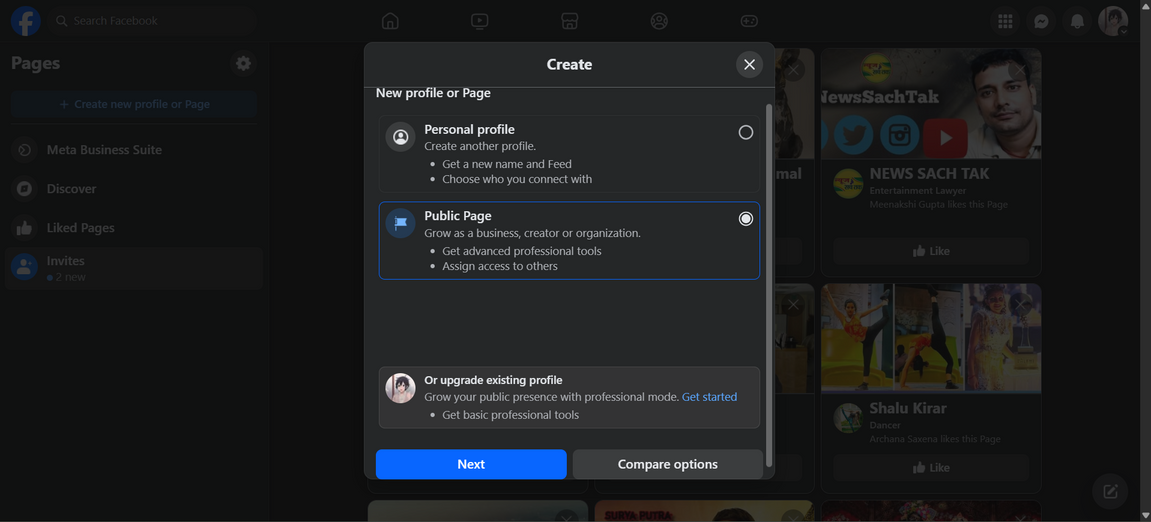
Before creating your Page, make sure you have a [personal Facebook account](/meta-business-setup/ecosystem/how-to-create-a-facebook-account.md). Go to , and log in with your Facebook credentials. Once logged in, click **Menu** (top right) → select **Pages** → then click **Create New Page**.
**Step 2: Choose the type of page**\
You'll be prompted to choose a Page type. Select **Public Page**, since this option is designed for businesses, brands, and organizations that want to connect with the public.
**Step 3: Enter basic page details**\
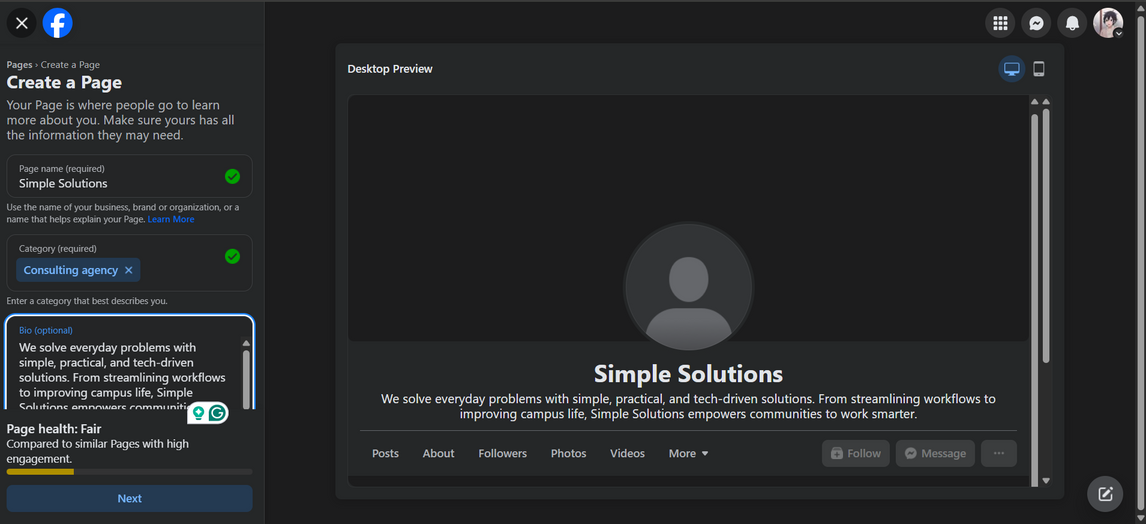
This is where you define your brand identity — make sure the information matches your business documentation to avoid verification issues later. Enter your **Page name** — your official business or brand name (e.g., *Donderstorm Auto Services*). Choose a **Category** that best describes your business — for instance, Software Company, Consulting Agency, Educational Institute, or Retail Store. Then write a short **Bio/description** — a clear introduction about your business in 2-3 lines. Example: "Donderstorm is a vehicle maintenance booking platform that connects customers with trusted service providers."
{% hint style="info" %}
Keep your business name and category consistent with your GST certificate, incorporation documents, or any legal proof. Meta cross-verifies these details during Business Verification later.
{% endhint %}
**Step 4: Add your branding elements**\
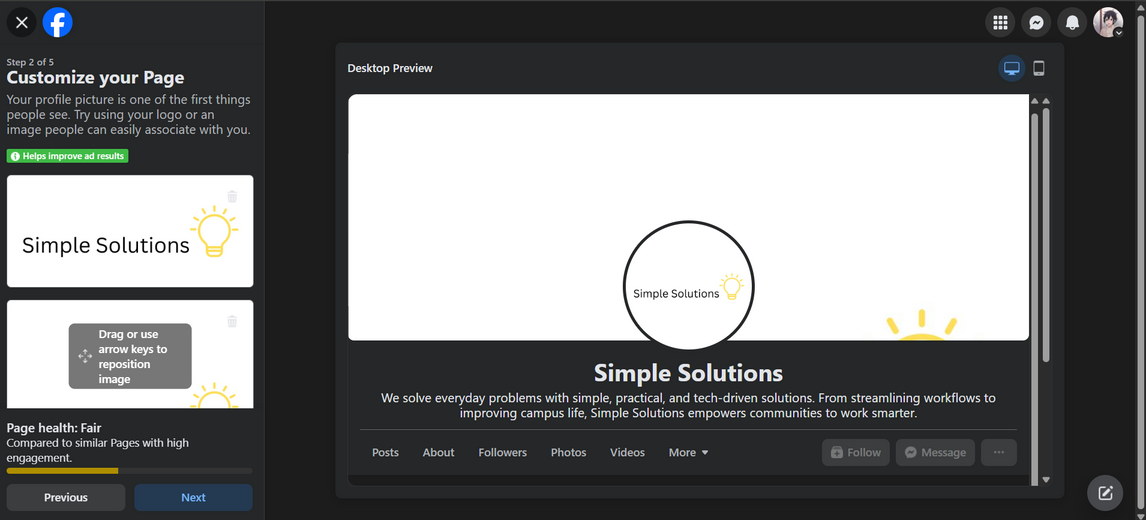
A Page with complete visual branding builds trust and recognition. Upload your business logo as the **profile picture** (preferably square, 400x400 pixels), and add a banner that visually represents your brand as the **cover photo** (ideal dimensions: 820x312 pixels). Adjust the positioning of both images so they appear centered and clear.\
**Why this matters**: a professional logo and cover instantly help customers identify your official business Page and distinguish it from similar pages or impostors.
**Step 5: Connect WhatsApp (optional but highly recommended)**\
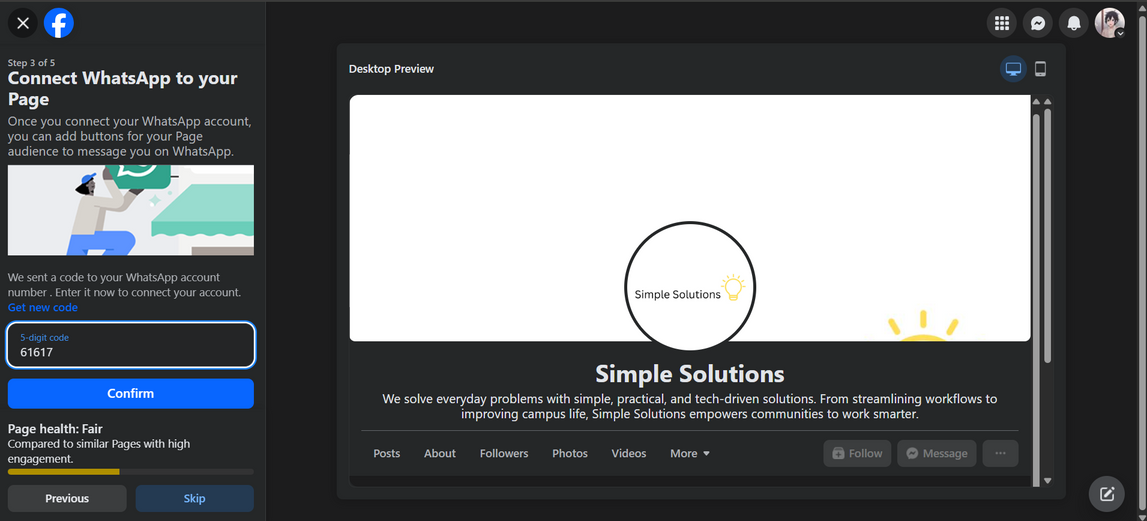
Integrating WhatsApp with your Facebook Page lets customers contact you directly via chat. Click **Connect WhatsApp** while setting up your Page, then enter your **WhatsApp Business number**. Meta sends you a 5-digit verification code via WhatsApp — enter it to confirm. Once verified, a **Message us on WhatsApp** button automatically appears on your Page.
{% hint style="info" %}
Use your official business WhatsApp number to ensure brand consistency and a seamless customer experience. Haven't onboarded your number to DoubleTick yet? See the prerequisites for onboarding.
{% endhint %}
**Step 6: Add additional business information**\
To increase credibility and help customers reach you, add as much detail as possible: a **Website URL** linking to your company website or portfolio page, a **Business email** using a professional domain-based address (e.g., ), and your **Address**, if you have a physical office or registered business location. Adding these details signals authenticity and makes your Page appear more trustworthy to both customers and Meta's verification systems.
**Step 7: Publish and review your page**\
Once all information and branding are complete, click **Publish Page**. Review all fields for accuracy — especially your Page name, contact details, and category — then visit your newly published Page and make sure it appears correctly across desktop and mobile. Your Facebook Page is now live! This Page will serve as the identity you connect to your [Meta Business Portfolio](/meta-business-setup/ecosystem/how-to-create-a-meta-business-portfolio.md) and WhatsApp Business Account later.
#### Meta best practices
* **Use real and consistent information:** the name, address, and website on your Page should match the information in your official business documents.
* **Avoid fake or placeholder Pages:** Meta routinely reviews business Pages, and inconsistencies may lead to restrictions or removal.
* **Use an official domain email:** having an email that matches your business domain improves trust and verification success.
* **Assign Page roles carefully:** add only trusted team members or verified DoubleTick representatives (with @quicksell.co emails).
#### Common mistakes to avoid
| Mistake | Why it's a problem | How to fix it |
| ----------------------------------------------- | --------------------------------------------- | --------------------------------- |
| Using a fake or personal name as the Page title | May lead to rejection or restriction | Use the business's legal name |
| Uploading low-quality or unrelated images | Reduces brand credibility | Use your official logo and banner |
| Skipping WhatsApp connection | Missed opportunity for customer communication | Add WhatsApp during setup |
| Inconsistent info between Page and documents | Can delay Meta Business Verification | Match all names and addresses |
Creating a Facebook Page is your first and most important step toward establishing your brand identity on Meta. Done correctly, it ensures smooth onboarding to the WhatsApp Business API and strengthens customer trust from day one.
#### Key takeaways
* A Facebook Page must be created from a **personal account** belonging to a real individual — not a fake name or business-only account.
* Keep your **Page name, category, and bio** consistent with your legal business documents; Meta cross-verifies these during Business Verification.
* Connecting **WhatsApp** to your Page is optional but recommended — it adds a "Message us on WhatsApp" button for customers.
* Use an **official domain email** and a professional logo/cover photo to build trust and pass Meta's review.
* This Page becomes the identity you connect to your Meta Business Portfolio and WhatsApp Business Account later.
#### Frequently asked questions
**Can I create a Facebook Page without a personal Facebook account?**\
No. Pages must always be created from a personal account belonging to a real individual — not fake names or business-only accounts.
**Is connecting WhatsApp to my Page required?**\
No, it's optional but highly recommended. It lets customers message you directly and adds a "Message us on WhatsApp" button to your Page.
**What image sizes should I use for my Page?**\
A square profile picture (400x400 pixels) and a cover photo sized 820x312 pixels are the ideal dimensions.
**Why does my business information need to match my legal documents?**\
Meta cross-verifies your Page name, category, and bio against documents like your GST certificate or incorporation papers during Business Verification — mismatches can delay approval.
**Who should I give access to my Page?**\
Only trusted team members or verified DoubleTick representatives. Assign roles carefully through your Meta Business Portfolio rather than sharing login credentials.
#### Related topics
* [How to create a facebook account](/meta-business-setup/ecosystem/how-to-create-a-facebook-account.md)
* [How to create a META business portfolio](/meta-business-setup/ecosystem/how-to-create-a-meta-business-portfolio.md)
* [How to create an Ad account](/meta-business-setup/ecosystem/how-to-create-an-ad-account.md)
---
# Agent Instructions
This documentation is published with GitBook. GitBook is the documentation platform designed so that both humans and AI agents can read, navigate, and reason over technical content effectively. Learn more at gitbook.com.
## Querying This Documentation
If you need additional information that is not directly available in this page, you can query the documentation by asking a question.
Perform an HTTP GET request on the following URL with the `ask` and `goal` query parameters:
```
GET https://learn.doubletick.io/meta-business-setup/ecosystem/how-to-create-a-facebook-page.md?ask=&goal=
```
`ask` is the immediate question: it should be specific, self-contained, and written in natural language.
`goal` is what the user is ultimately trying to achieve, the reason they need the answer. Sharing it helps GitBook give you a better, more relevant answer. A goal is most helpful when it describes the outcome the user wants rather than restating the question. For example, with `ask=how do I create an API token`, a goal like `automate deployments from our CI pipeline` lets GitBook tailor the answer to that use case.
The response will contain a direct answer to the question and relevant excerpts and sources from the documentation.
Use this mechanism when the answer is not explicitly present in the current page, you need clarification or additional context, or you want to retrieve related documentation sections.