> For the complete documentation index, see [llms.txt](https://learn.doubletick.io/llms.txt). Markdown versions of documentation pages are available by appending `.md` to page URLs; this page is available as [Markdown](https://learn.doubletick.io/meta-business-setup/official-business-accounts-blue-badge/how-to-apply-for-an-blue-badge.md).
# How to apply for an blue badge
Learn the exact steps to submit an Official Business Account (OBA) request from DoubleTick, including what to include as supporting evidence.
This guide walks you through the exact steps to submit an OBA (blue checkmark) request from DoubleTick, including what to submit as supporting evidence and what happens after you apply.
#### What's covered
* [Step-by-step application process](#step-by-step-application-process)
* [What happens after submission?](#what-happens-after-submission)
* [If your OBA request is approved](#if-your-oba-request-is-approved)
{% hint style="info" %}
Before applying, make sure your number meets all the [eligibility criteria for OBA](/meta-business-setup/official-business-accounts-blue-badge/eligibility-criteria-for-blue-badge.md) — including 30 days of activity, verified Business Portfolio, and two-step verification.
{% endhint %}
#### Step-by-step application process
**Step 1: Log in to DoubleTick**\
Log in to your DoubleTick account using your registered mobile number and OTP. Once logged in, you'll land on the Home page.
**Step 2: Open WhatsApp Manager From DoubleTick**\
From the left-hand navigation panel, click **Home**. On the top-right corner, you'll see a button called **Go to FBM Account** — click on it. This will automatically redirect you to the WhatsApp Manager – Overview page within your Meta Business account.
**Step 3: Navigate to Your Phone Number in WhatsApp Manager**\
Look at the left-hand panel, click on **Account Tools**, and select **Phone Numbers**. Here you'll be able to see your DoubleTick API phone number and the approved display name associated with it — click on either the phone number or the display name to proceed.
**Step 4: Open the Profile Section**\
Click on **Profile**.
**Step 5: Submit the OBA Request**\
Scroll to locate **Official Business Account** and click on **Submit Request**. You'll now be directed to the OBA application form.
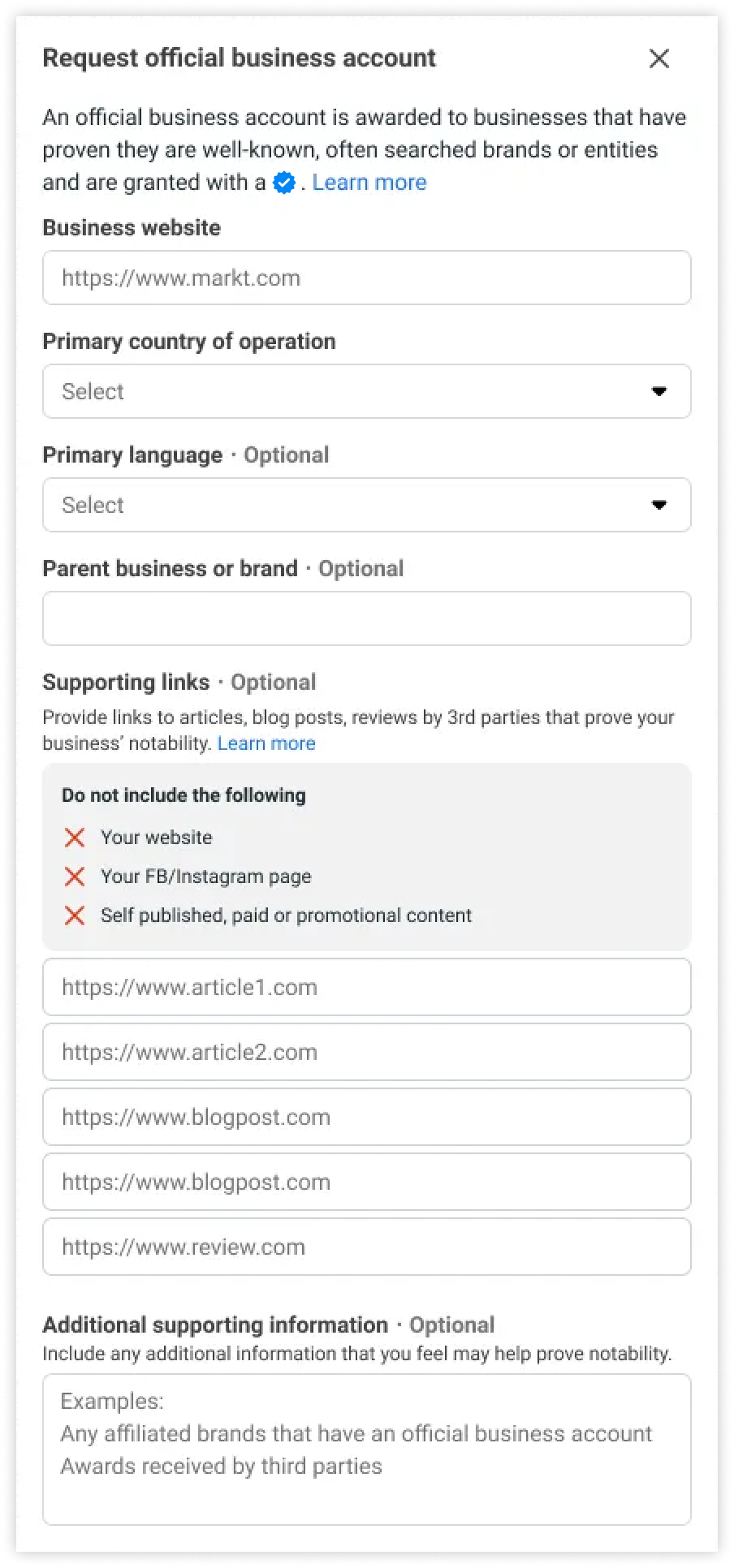
**Step 6: Fill in the OBA Application Details**
Enter the **country of origin** — the country where the business is legally registered, which must match your official business documentation. Then add your **supporting PR / media links** (important): you can submit up to 5 PR or media links, and these should demonstrate that your business is notable and publicly recognized, since only organic, editorial coverage is accepted.
**Example of a valid PR link:**\
This link is valid because it's published by Economic Times, it's not a paid promotion, and it comes from a reputed media source.
{% hint style="warning" %}
**Do not submit the following:**
* Paid advertisements
* Sponsored PR articles
* Business directory listings
* App store links
* Self-published blog posts
{% endhint %}
**Step 7: Submit the Application**\
Once you've added the PR links, click **Submit**. Your OBA request will now be successfully submitted for review.
#### What happens after submission?
* Your request enters a manual review process
* You'll receive an email notification once a decision is made
* Review timelines typically range between **48 to 72 hours**
#### If your OBA request is approved
* A blue checkmark will appear next to your business name
* Your business becomes searchable within WhatsApp
If your request doesn't get approved, that's common and doesn't affect your account — see [what to do if your OBA request gets rejected](/meta-business-setup/official-business-accounts-blue-badge/what-if-your-oba-request-is-rejected.md). For DoubleTick users, the Official Business Account request is submitted directly through WhatsApp Manager, which can be accessed using the **Go to FBM Account** button inside the DoubleTick dashboard. While the submission process is straightforward, approval depends entirely on business notability and public presence, not on platform usage.
#### Key takeaways
* You apply for OBA from within WhatsApp Manager, accessed via DoubleTick's **Go to FBM Account** button
* You can submit up to 5 PR/media links as evidence of notability — only organic editorial coverage counts
* Review typically takes 48–72 hours and you're notified by email
* Approval depends on brand notability, not on how you use DoubleTick or the API
#### FAQs
**How long does the OBA review take?**\
Typically between 48 and 72 hours. You'll get an email once a decision is made.
**Can I submit more than 5 PR links?**\
No, the form accepts a maximum of 5 supporting PR or media links.
**Will a paid advertisement or sponsored article help my application?**\
No. Only organic, editorial coverage from reputable media is accepted — paid promotions, sponsored PR, directory listings, and self-published blogs are not.
**Where exactly in DoubleTick do I start the OBA application?**\
From the DoubleTick Home page, click **Go to FBM Account**, which takes you into WhatsApp Manager, where you submit the request under Account Tools > Phone Numbers > Profile > Official Business Account.
#### Related topics
[OBA guide](/meta-business-setup/official-business-accounts-blue-badge/oba-guide.md)\
[Eligibility criteria for blue badge](/meta-business-setup/official-business-accounts-blue-badge/eligibility-criteria-for-blue-badge.md)\
[What if your OBA request is rejected?](/meta-business-setup/official-business-accounts-blue-badge/what-if-your-oba-request-is-rejected.md)
---
# Agent Instructions
This documentation is published with GitBook. GitBook is the documentation platform designed so that both humans and AI agents can read, navigate, and reason over technical content effectively. Learn more at gitbook.com.
## Querying This Documentation
If you need additional information that is not directly available in this page, you can query the documentation by asking a question.
Perform an HTTP GET request on the following URL with the `ask` and `goal` query parameters:
```
GET https://learn.doubletick.io/meta-business-setup/official-business-accounts-blue-badge/how-to-apply-for-an-blue-badge.md?ask=&goal=
```
`ask` is the immediate question: it should be specific, self-contained, and written in natural language.
`goal` is what the user is ultimately trying to achieve, the reason they need the answer. Sharing it helps GitBook give you a better, more relevant answer. A goal is most helpful when it describes the outcome the user wants rather than restating the question. For example, with `ask=how do I create an API token`, a goal like `automate deployments from our CI pipeline` lets GitBook tailor the answer to that use case.
The response will contain a direct answer to the question and relevant excerpts and sources from the documentation.
Use this mechanism when the answer is not explicitly present in the current page, you need clarification or additional context, or you want to retrieve related documentation sections.
.gif?alt=media&token=89b3e966-b8e9-4529-a134-a4ba77f10e24)