> For the complete documentation index, see [llms.txt](https://learn.doubletick.io/llms.txt). Markdown versions of documentation pages are available by appending `.md` to page URLs; this page is available as [Markdown](https://learn.doubletick.io/settings/enterprise-security/custom-pii-masking-and-blocking.md).
# Custom PII masking and blocking
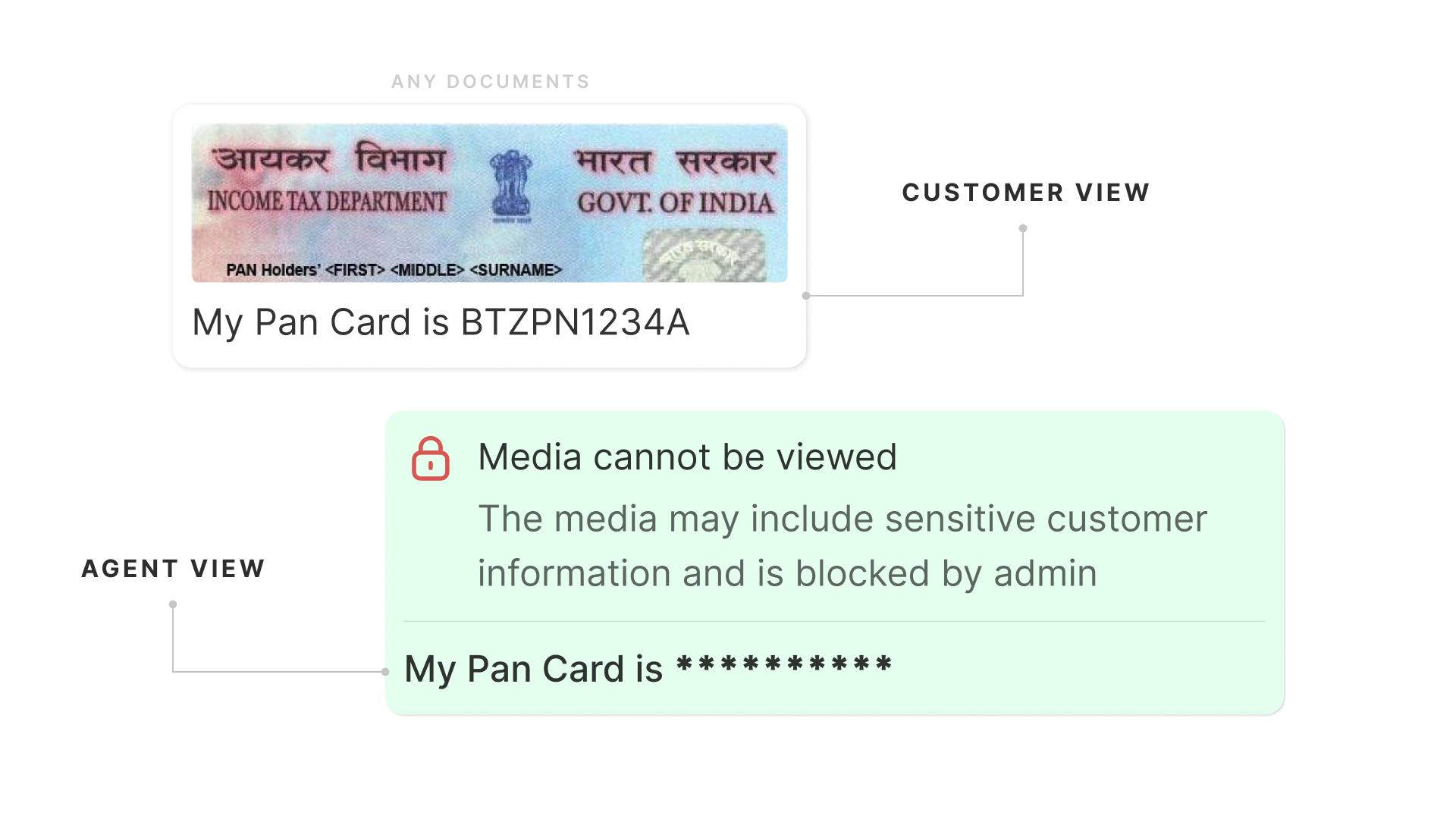
Learn how DoubleTick’s Enterprise Security feature allows enterprise accounts to integrate a custom Security API to detect, mask, or block sensitive information (PII) in text messages and media files.
**Plan Availability**: Enterprise Plan *(Pro plan users can buy the Enterprise Security add-on under Billing & Invoices → Purchase Add-on or by contacting their Account Manager).*
#### What’s covered
* [Feature overview & availability](https://learn.doubletick.io/settings/enterprise-security/custom-pii-masking-and-blocking-using-your-own-security-api#feature-overview-and-availability)
* [Why use custom PII security (key benefits)](https://learn.doubletick.io/settings/enterprise-security/custom-pii-masking-and-blocking-using-your-own-security-api#why-use-custom-pii-security-key-benefits)
* [How custom PII validation works](https://learn.doubletick.io/settings/enterprise-security/custom-pii-masking-and-blocking-using-your-own-security-api#how-custom-pii-validation-works)
* [Security actions](https://learn.doubletick.io/settings/enterprise-security/custom-pii-masking-and-blocking-using-your-own-security-api#security-actions-explained)
* [Step-by-step setup guide](https://learn.doubletick.io/settings/enterprise-security/custom-pii-masking-and-blocking-using-your-own-security-api#how-to-configure-pii-enterprise-security)
#### Feature overview & availability
Custom PII masking and blocking lets enterprise organizations control how sensitive personal data is handled during customer conversations. By connecting your own **Security API** to DoubleTick, your team can automatically detect sensitive text and media before it is stored or shared.
* **Plan requirement**: Available exclusively on the Enterprise plan
* **Permission level**: Only the primary owner can view, configure, or modify Enterprise Security settings.
#### Why use custom PII security (key benefits)
Integrating your own Security API with DoubleTick helps maintain compliance, protect customer trust, and secure internal communication without interrupting daily operations.
* **Protects customer privacy**: Automatically masks personal details like payment info, national IDs, or financial credentials so agents only see what they need to.
* **Enforces custom compliance rules**: Keeps detection logic inside your organization's infrastructure so your specific data governance policies are applied.
* **Covers both text and media**: Scans written messages and uploaded attachments (like documents or images) for sensitive details.
* **Prevents accidental data leaks**: Automatically blocks or redacts restricted information before it gets stored in conversation histories or shared externally.
#### How custom PII validation works
DoubleTick connects directly with your organization’s existing Security API to check incoming and outgoing messages in real time.
1. A customer or agent sends a text message or uploads a media file.
2. DoubleTick routes the content to your configured Security API endpoint.
3. Your Security API analyzes the content using your internal detection rules.
4. Your API sends a response back stating whether sensitive data was found and what action to take.
5. DoubleTick automatically applies the required action (masking, blurring, or rejecting) before saving or delivering the content.
#### Security actions explained
You can choose how sensitive data should be handled depending on the channel and content type:
* **Mask (text)**: Replaces sensitive characters with mask placeholders while delivering the rest of the message (e.g., converting `9876543210` to `XXXXXXXX10`).
* **Blur (media)**: Obscures sensitive visual information within images or documents before they are stored or displayed.
* **Reject (text & media)**: Blocks the message or attachment entirely if sensitive data is detected, preventing non-compliant content from being sent.
#### How to configure PII Enterprise Security
Follow these steps to connect your custom Security API to DoubleTick.
1. Sign in to DoubleTick using your Primary Owner credentials.
2. Go to Settings > Enterprise Security.
3. Click on Block Sensitive Information to view text and media options.
4. Toggle Media Blocking on, then choose either Reject (blocks the file) or Blur (obscures sensitive content).
5. Toggle Text Blocking on, then choose either Reject (prevents message delivery) or Mask (hides sensitive characters).
6. Paste your organization's Security API Endpoint URL provided by your technical or engineering team.
7. Click Save & Connect to activate PII detection across your organization's messages and attachments.
#### Key takeaways
* Requires an Enterprise plan and Primary Owner permissions to set up.
* Lets you use your own internal detection rules for full data control.
* Supports both text masking/rejection and media blurring/rejection.
* Incoming customer support conversations remain active while automatically keeping sensitive fields protected.
**Suggested articles**\
[How to Set Up IP Access Control](https://learn.doubletick.io/settings/enterprise-security/ip-access-control)\
[How to Configure Enterprise Security Controls](https://learn.doubletick.io/settings/enterprise-security/enterprise-security-controls)\
[How to Control Team Member Login Access with Device Management](https://learn.doubletick.io/settings/enterprise-security/control-team-member-login-access-with-device-management)
---
# Agent Instructions
This documentation is published with GitBook. GitBook is the documentation platform designed so that both humans and AI agents can read, navigate, and reason over technical content effectively. Learn more at gitbook.com.
## Querying This Documentation
If you need additional information that is not directly available in this page, you can query the documentation by asking a question.
Perform an HTTP GET request on the following URL with the `ask` and `goal` query parameters:
```
GET https://learn.doubletick.io/settings/enterprise-security/custom-pii-masking-and-blocking.md?ask=&goal=
```
`ask` is the immediate question: it should be specific, self-contained, and written in natural language.
`goal` is what the user is ultimately trying to achieve, the reason they need the answer. Sharing it helps GitBook give you a better, more relevant answer. A goal is most helpful when it describes the outcome the user wants rather than restating the question. For example, with `ask=how do I create an API token`, a goal like `automate deployments from our CI pipeline` lets GitBook tailor the answer to that use case.
The response will contain a direct answer to the question and relevant excerpts and sources from the documentation.
Use this mechanism when the answer is not explicitly present in the current page, you need clarification or additional context, or you want to retrieve related documentation sections.