> For the complete documentation index, see [llms.txt](https://learn.doubletick.io/llms.txt). Markdown versions of documentation pages are available by appending `.md` to page URLs; this page is available as [Markdown](https://learn.doubletick.io/settings/enterprise-security/ip-access-control.md).
# IP Access Control
Enterprise-Grade Security to Protect Your Workspace
**Plan Availability**: Enterprise Plan *(Pro plan users can buy the Enterprise Security add-on under Billing & Invoices → Purchase Add-on or by contacting their Account Manager).*
Businesses often handle sensitive customer conversations, lead information, and internal data inside DoubleTick. Protecting this information requires strong access controls so that only authorized users can log in.
**IP Address Blocking** is an enterprise security feature that allows organizations to control where their DoubleTick workspace can be accessed from. With this feature enabled, users can log in only when they are connected to approved networks.
If someone attempts to log in from an unapproved location, access is automatically blocked—even if they have the correct login credentials.
***
#### **What Is IP Access Control?**
Every internet connection uses an **IP address**, which identifies the network a device is connected to.
IP Address Blocking allows organizations to define which IP addresses or networks are trusted. Once configured, only users connecting from those approved networks can access the DoubleTick workspace.
Trusted networks can include:
* Office internet networks
* Company VPN networks
* Specific approved locations
* Defined IP ranges used by internal systems
Any login attempt from outside these approved IPs will be denied.
***
#### **Availability**
IP Address Blocking is available **only for Enterprise accounts**.
If your DoubleTick account is on the **Enterprise plan**, you will see the IP Access Control option in your settings and can configure it.
Accounts using **Starter or Pro plans** will not have access to this feature. To use IP Address Blocking, the account must be **upgraded to the Enterprise plan**.
Only the **Primary Owner of the organization** can configure or modify these settings.
***
#### **Why Businesses Use IP Access Control**
Most systems rely only on usernames and passwords for access. However, passwords alone may not always provide enough protection.
IP Address Blocking adds an additional security layer by restricting login access to trusted networks.
This helps organizations:
* Prevent login attempts from unknown locations
* Protect customer conversations and internal data
* Maintain stronger access control policies
* Reduce the risk of unauthorized access
By allowing access only from approved networks, organizations can significantly improve the security of their workspace.
***
#### **How IP Address Blocking Works**
Once IP Address Blocking is enabled, the system enforces strict network-based access control.
1. The organization configures allowed IP addresses or IP ranges.
2. The system checks the network IP address whenever a user attempts to log in.
3. If the IP address matches the approved list, access is allowed.
4. If the IP address is not approved, the login attempt is blocked.
When the feature is enabled:
* All currently active users are automatically logged out.
* Users must log in again from an approved IP address.
* Access is denied for any unapproved network.
***
#### **What Happens If a User Is Already Logged In?**
If IP Access Control is enabled while a user is already logged in from a network that is not approved, the system will automatically log the user out.
The user will need to log in again using a connection from an approved IP address.
This ensures that the security rule is applied immediately.
***
#### **Understanding IP Ranges (CIDR)**
In some cases, offices or VPN networks may use a **range of IP addresses** instead of a single one.
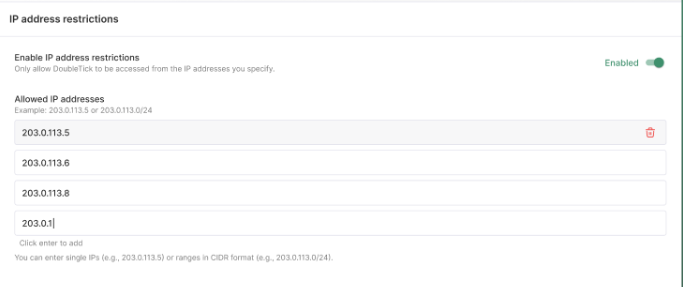
To allow access for an entire network range, **CIDR notation** can be used.
Example:
Single IP address\
203.0.113.5
CIDR range\
203.0.113.0/24
Using CIDR allows organizations to authorize an entire network instead of adding multiple IP addresses individually. Your IT team can provide the correct IP or CIDR range if required.
***
#### **How to Configure IP Access Control**
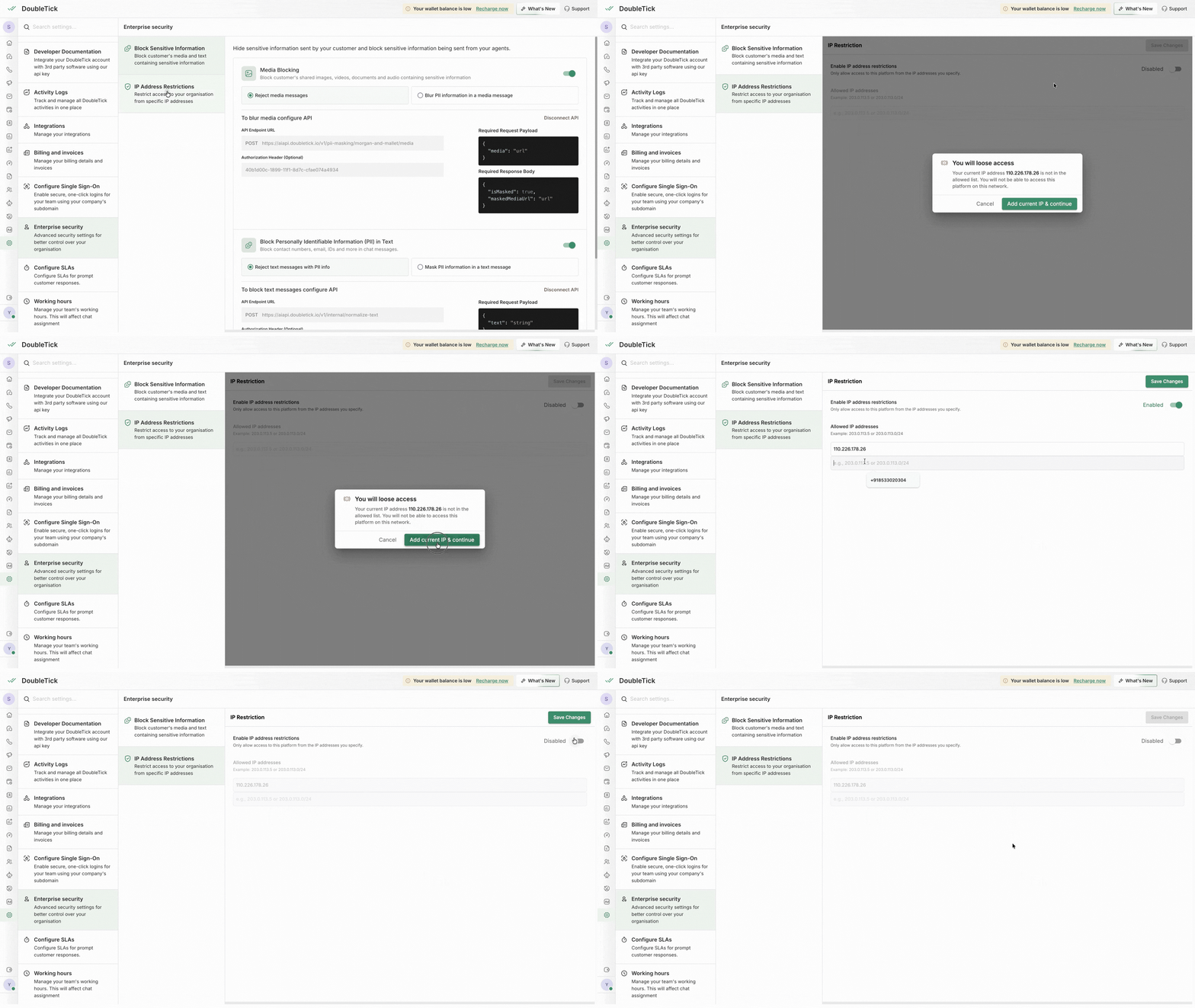
Follow these steps to enable IP Access Control in DoubleTick.
#### Step 1: Log in as the Organization Owner
Log in to your DoubleTick account using the **Primary Owner account**, since only the owner can configure this feature.
#### Step 2: Open Settings
From the dashboard, navigate to **Settings**.
#### Step 3: Open IP Access Control
Inside Settings, open the **IP Access Control** section.
#### Step 4: Enable IP Restrictions
Turn on **Enable IP Address Restrictions**.
#### Step 5: Add Allowed IP Addresses
Add the IP addresses or CIDR ranges that should be allowed to access the workspace.
You can add multiple entries for:
* Office networks
* VPN networks
* Branch office locations
#### Step 6: Save the Configuration
Click **Save** to apply the settings.
After saving, only users connecting from approved IP addresses will be able to log in.
***
#### **Owner-Only Control**
To prevent unauthorized changes, **only the Organization Owner** can configure or modify IP Access Control settings. Other user roles such as admins, managers, or agents cannot edit these settings.
***
IP Address Blocking provides a simple yet powerful way to control who can access your DoubleTick workspace. By restricting access to trusted networks, organizations can maintain stronger security without affecting everyday operations.
***
---
# Agent Instructions
This documentation is published with GitBook. GitBook is the documentation platform designed so that both humans and AI agents can read, navigate, and reason over technical content effectively. Learn more at gitbook.com.
## Querying This Documentation
If you need additional information that is not directly available in this page, you can query the documentation by asking a question.
Perform an HTTP GET request on the following URL with the `ask` and `goal` query parameters:
```
GET https://learn.doubletick.io/settings/enterprise-security/ip-access-control.md?ask=&goal=
```
`ask` is the immediate question: it should be specific, self-contained, and written in natural language.
`goal` is what the user is ultimately trying to achieve, the reason they need the answer. Sharing it helps GitBook give you a better, more relevant answer. A goal is most helpful when it describes the outcome the user wants rather than restating the question. For example, with `ask=how do I create an API token`, a goal like `automate deployments from our CI pipeline` lets GitBook tailor the answer to that use case.
The response will contain a direct answer to the question and relevant excerpts and sources from the documentation.
Use this mechanism when the answer is not explicitly present in the current page, you need clarification or additional context, or you want to retrieve related documentation sections.