> For the complete documentation index, see [llms.txt](https://learn.doubletick.io/llms.txt). Markdown versions of documentation pages are available by appending `.md` to page URLs; this page is available as [Markdown](https://learn.doubletick.io/settings/how-to-set-up-working-hours.md).
# How to set up working hours
Learn how to configure organization-wide and custom working hours in DoubleTick to manage team availability, automate chat routing, auto-set offline statuses, and set up custom away messages.
#### What's covered
* [Types of working hours](#understanding-the-two-types-of-working-hours)
* [Setting up organization working hours](#setting-up-organization-working-hours)
* [Setting up custom working hours](#setting-up-custom-working-hours)
* [Night shifts (overnight working hours)](#night-shifts-overnight-working-hours)
* [Configuring away messages](#configuring-away-messages)
* [Related articles](#related-articles)
#### Understanding the two types of working hours
DoubleTick gives you two ways to manage working hours.
* **Organization working hours**: A single schedule applied universally across your entire organization. Best suited for companies where all teams follow the same operational hours.
* **Custom working hours**: Dedicated schedules tailored to specific teams. If a team does not have a custom schedule assigned, it automatically inherits the working hours of its parent team based on your team hierarchy. Ideal for global organizations operating across multiple regions or time zones.
#### Setting up organization working hours
Go to **Settings** → **Working hours** → **Organization working hours**.
* **Set time zone**: Select your organization's primary time zone.
* **Define daily working hours**: Select each active day and set the start and end time.
* **Add special days**: Select **Add hours**, choose a date, and set custom hours.
* **Enable chat auto-assignment**: Turn on **Auto-assign** and select team members to route chats during working hours.
* **Auto-set members offline after working hours**: Enable this option to change member statuses automatically. New chats are not assigned outside working hours.
* **Set up holidays**: Add monthly or annual holidays to mark days when your team is unavailable.
#### Setting up custom working hours
Use **custom working hours** when teams follow different schedules or time zones. Go to **Settings** → **Working hours** → **Custom working hours**, then select **Add new**.
* **Set configuration details**: Name the schedule and select the teams that use it.
* **Set time zone**: Select the time zone for those teams.
* **Define daily working hours**: Set the start and end time for each active day.
* **Add special days**: Select **Add hours**, then set custom dates and hours.
* **Enable chat auto-assignment**: Turn on **Auto-assign** and select team members.
* **Auto-set members offline after working hours**: Enable this option to prevent new assignments outside working hours.
* **Save configuration**: Select **Save working hours**. Repeat for each schedule.
{% hint style="info" %}
Each team needs its own configuration when its schedule differs.
{% endhint %}
#### Night shifts (overnight working hours)
Any of the hours you set above, whether daily working hours or special days, can now cross midnight, like Monday 10 PM to Tuesday 2 AM. Earlier, working hours had to start and end on the same day, so a night shift did not work correctly. DoubleTick now treats the whole night as working time, and uses it everywhere working hours matter, such as bot responses, chat auto-assignment, and away messages.
Pick an end time earlier than the start time, and DoubleTick treats it as a night shift that ends the next day, instead of an invalid same-day range.
* Regular working hours show the next day in a small chip, for example Tue.
* Special days show a +1 next to the end time.
* Setting the same start and end time, like 10 AM to 10 AM, is not treated as a night shift.
| You set | Counted as working time |
| ----------------------------------------- | ----------------------------------------------------------- |
| Regular hours: Monday, 10 PM → 2 AM (Tue) | Every Monday 10 PM to Tuesday 2 AM |
| Special day: 29–30 Sep, 10 PM → 3 AM (+1) | 29 Sep 10 PM to 30 Sep 3 AM, and 30 Sep 10 PM to 1 Oct 3 AM |
**Night shifts on special days**
Special days already replace your regular hours for that date. When a special day's end time is overnight, keep these in mind:
* Any time before the special day's start time still counts as outside working hours, even on that date.
* If you set an overnight special day across a range of dates, each night in the range rolls over on its own. For example, 29–30 Sep, 10 PM to 3 AM (+1) creates two separate night shifts: 29 Sep 10 PM to 30 Sep 3 AM, and 30 Sep 10 PM to 1 Oct 3 AM. Regular hours resume only after the last one ends.
* Special days stay in the list until their dates are over, then drop off automatically. Inactive ones stay hidden.
Custom working hours use the team's own time zone, so a team's night shift follows that team's clock.
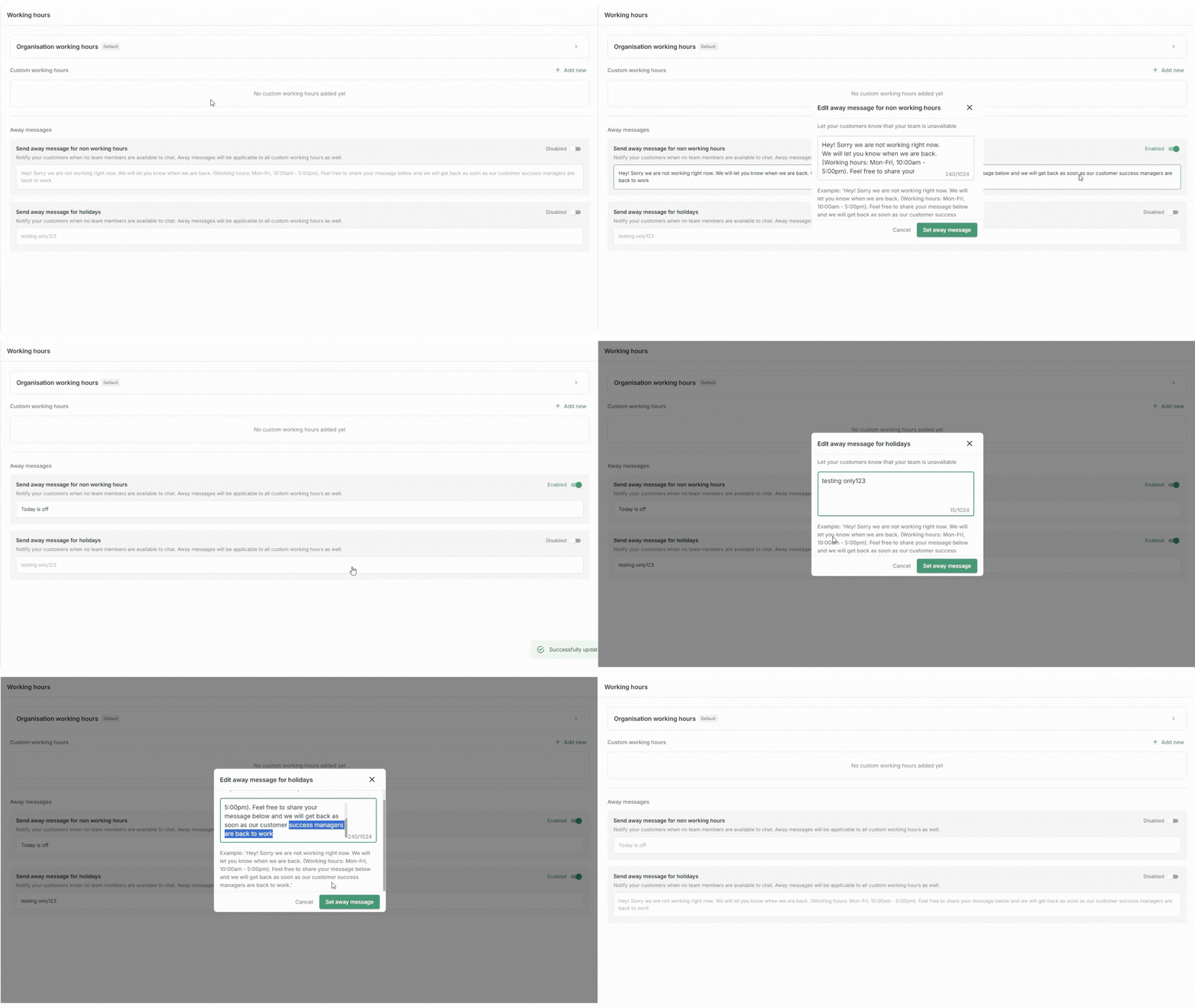
#### Configuring away messages
Away messages send automated responses outside defined working hours or on holidays.
* **Standard away message**: Enable **Away messages**, write the response, then select **Save**.
* **Holiday away message**: Enable **Holiday away message**, write the response, then select **Save**.
#### Key takeaways
* Use organization working hours for single, company-wide schedules.
* Use custom working hours for team-specific, shift-based, or regional schedules.
* Schedules directly dictate bot responses, chat auto-assignment routing, offline status toggles, and away messaging.
* Working hours can now cross midnight for night shifts, across org and custom hours, and across regular hours and special days.
* An end time earlier than the start time rolls the shift over to the next day. Regular hours show this as a day chip, special days show it as +1.
#### Related articles
{% content-ref url="/spaces/53n17VnOICC1LtDqlENV/pages/HzGF2IQYItRYEYt13iKC" %}
[How to assign chats](/chat-management/start-and-manage-chats/how-to-assign-chats.md)
{% endcontent-ref %}
{% content-ref url="/spaces/53n17VnOICC1LtDqlENV/pages/WV3TlqGi5JrlyfqG1Kpy" %}
[How to Mark Yourself Online or Offline on Web](/chat-management/team-availability-and-collaboration/how-to-mark-yourself-online-or-offline-on-web.md)
{% endcontent-ref %}
{% content-ref url="/spaces/53n17VnOICC1LtDqlENV/pages/DDm9D4roMhwn8PO4QV10" %}
[How to Mark Yourself Online or Offline on the Android App](/chat-management/team-availability-and-collaboration/how-to-mark-yourself-online-or-offline-on-the-android-app.md)
{% endcontent-ref %}
---
# Agent Instructions
This documentation is published with GitBook. GitBook is the documentation platform designed so that both humans and AI agents can read, navigate, and reason over technical content effectively. Learn more at gitbook.com.
## Querying This Documentation
If you need additional information that is not directly available in this page, you can query the documentation by asking a question.
Perform an HTTP GET request on the following URL with the `ask` and `goal` query parameters:
```
GET https://learn.doubletick.io/settings/how-to-set-up-working-hours.md?ask=&goal=
```
`ask` is the immediate question: it should be specific, self-contained, and written in natural language.
`goal` is what the user is ultimately trying to achieve, the reason they need the answer. Sharing it helps GitBook give you a better, more relevant answer. A goal is most helpful when it describes the outcome the user wants rather than restating the question. For example, with `ask=how do I create an API token`, a goal like `automate deployments from our CI pipeline` lets GitBook tailor the answer to that use case.
The response will contain a direct answer to the question and relevant excerpts and sources from the documentation.
Use this mechanism when the answer is not explicitly present in the current page, you need clarification or additional context, or you want to retrieve related documentation sections.