> For the complete documentation index, see [llms.txt](https://learn.doubletick.io/llms.txt). Markdown versions of documentation pages are available by appending `.md` to page URLs; this page is available as [Markdown](https://learn.doubletick.io/settings/how-to-use-custom-nested-fields-for-crm-grade-data.md).
# How to use Custom Nested Fields for CRM-grade Data
Learn how to use nested custom fields to store structured customer data.
\
As businesses grow, their data grows with them — but not always in a structured manner.\
Most teams start with simple attributes like Name, Phone, City, Source, or Interest.\
This works for small operations, but becomes limiting for:
* Segmentation
* Personalization
* Routing
* Reporting
* Sales qualification
* Campaign targeting
* Support workflows
For example, knowing a customer is in “Mumbai” is useful — but not enough if your event has **multiple venues** inside Mumbai. Or if your business has **multiple product variants** inside the same product category.
This is where **Custom Nested Fields** come in.
Nested fields allow businesses to store data in **hierarchies**.\
This gives structure, prevents ambiguity, and makes segmentation meaningful.
***
### **What Are Nested Custom Fields? (Simple Definition)**
A Nested Custom Field is a custom field that has:
```
Parent Field → Child Values
```
Think of it as a two-layer structure.
Example:
**Event (Parent)**\
↳ Mumbai\
↳ Powai\
↳ Andheri\
↳ Vile Parle\
↳ Bangalore\
↳ Indiranagar\
↳ Jayanagar\
↳ Whitefield
This structure allows the system to understand **context** in a layered manner.
Without nested fields, users would have to manually enter:
> EventCity = Mumbai,\
> EventLocation = Powai
And everyone may spell Powai differently or add new values randomly (Powai, Powai East, Powai West), leading to dirty CRM data.
Nested fields eliminate this inconsistency.
***
### **Why Businesses Need Hierarchical Data**
Hierarchies are important when:
* One parent has multiple variations
* You deal with multi-location operations
* You offer multiple product or service variants
* You need multi-layer segmentation for campaigns
* You want more accurate reporting
Let’s look at examples:
| Flat Data (Old Way) | Nested Data (New Way) |
| ------------------- | --------------------------- |
| City = Mumbai | City → Location → Powai |
| Category = Shoes | Category → Brand → Nike |
| Product = Car | Brand → Model → Variant |
| Support = Laptop | Device → Model → Issue Type |
With flat values, your CRM may treat Mumbai, Andheri, Powai all as separate cities — messy.\
Nested structure organizes them logically — clean.
***
### **Detailed Use Cases Across Industries**
Different domains benefit differently from nested structures.
#### **Events / Exhibitions / Conferences**
* Event → City → Venue\
This helps track participation & operations city-wise.
#### **Education / EdTech**
* Course → Module → Batch\
For student support, progress tracking, and content drip.
#### **Real Estate**
* City → Project → Tower\
For lead routing, price lists, and site visits.
#### **Logistics**
* Route → Hub → Zone\
For order management & delivery escalations.
#### **Enterprise Sales**
* Region → State → City\
Works well with B2B distributor networks.
In every example, the **goal is clarity and operational intelligence**.
***
### **How to Create Custom Nested Fields**
{% embed url="" %}
#### **Step 1: Login**
Login with the registered phone number and OTP.\
No technical skills required — this is a no-code configuration.
***
#### **Step 2: Open Settings**
Navigate to:
```
Settings → Custom Fields
```
This is where CRM attributes are defined for your workspace.
***
#### **Step 3: Create the Parent Field**
Click:
> **Create New Field**
Now think about what you want to categorize.
> Ask yourself:\
> “What is my main classification layer?”
This is your **parent**.
In our example:
> Parent = Event
Select:
> Field Type = List
Why list?\
Because list ensures standardization. Users must pick from your defined choices — avoiding spelling errors, duplicates, or random entries.
Now enter values such as:
* Mumbai
* Bangalore
* Delhi
These are your parent-level divisions.
Click **Save Custom Field**.
***
#### **Step 4: Create the Nested Layer**
Click:
> **Create New Field**
Enable:
> **Add Parent Field**
Select the parent field you just created (Event).
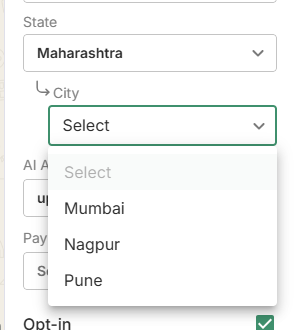
The system now allows you to “map” child values to each parent value.
For example:
* Under Mumbai → Powai, Andheri, Vile Parle
* Under Bangalore → Indiranagar, Jayanagar, Whitefield
* Under Delhi → CP, Greater Kailash
Save the field again.
At this point, you have a fully structured nested CRM attribute.
***
### **6. How to Assign Nested Values to a Customer**
Assigning nested data is as important as creating it.
#### **Step 1: Open Chats**
Open any customer conversation.
#### **Step 2: Add Custom Field**
Locate the right panel under **Details** and click:
> * Add Custom Field
Search for the parent (Event)
#### **Step 3: Select Parent Value**
Select the city (Mumbai)
#### **Step 4: Select Nested Value**
Now select the sub-location (Powai)
The system now stores the relationship:
> Event → Mumbai → Powai
This makes future segmentation possible.
***
### **7. Segmentation & Filtering: Why Nested Data Matters**
Nested data becomes extremely powerful during:
✔ Campaign broadcasts\
✔ CRM filtering\
✔ Automation workflows\
✔ Sales pipelines\
✔ Support queues\
✔ Live analytics
Example:
> Show me all customers attending Event = Mumbai\
> Or\
> Show me all customers in Event = Mumbai → Powai
This helps micro-segment audiences.
***
### **8. Benefits in Detail (Beyond Just “Organizing Data”)**
#### **1. Cleaner CRM Data**
Free-text leads to inconsistencies. Nested lists enforce standard inputs.
#### **2. Precise Segmentation**
Campaigns can be:
* Location specific
* Variant specific
* Category specific
#### **3. Faster Decision-Making**
Teams can identify:
* Priority customers
* Location clusters
* Variant preferences
#### **4. Reduced Human Error**
No typos like “Mumbai”, “mUmbai”, “Mum-Bai”.
#### **5. Works Across Departments**
Sales → Support → Operations can share standardized labels.
#### **6. Enterprise Friendly**
Complex operations need structured data — not flat notes.
***
### **11. Conclusion**
Nested Custom Fields bring DoubleTick closer to a **true CRM-grade data model**.\
Instead of storing data as disconnected labels, your workspace can now store structured, contextual information that supports:
* Smart segmentation
* Accurate targeting
* Detailed reporting
* Enterprise workflows
In short:\
**Better data → Better insights → Better business outcomes**
---
# Agent Instructions
This documentation is published with GitBook. GitBook is the documentation platform designed so that both humans and AI agents can read, navigate, and reason over technical content effectively. Learn more at gitbook.com.
## Querying This Documentation
If you need additional information that is not directly available in this page, you can query the documentation by asking a question.
Perform an HTTP GET request on the following URL with the `ask` and `goal` query parameters:
```
GET https://learn.doubletick.io/settings/how-to-use-custom-nested-fields-for-crm-grade-data.md?ask=&goal=
```
`ask` is the immediate question: it should be specific, self-contained, and written in natural language.
`goal` is what the user is ultimately trying to achieve, the reason they need the answer. Sharing it helps GitBook give you a better, more relevant answer. A goal is most helpful when it describes the outcome the user wants rather than restating the question. For example, with `ask=how do I create an API token`, a goal like `automate deployments from our CI pipeline` lets GitBook tailor the answer to that use case.
The response will contain a direct answer to the question and relevant excerpts and sources from the documentation.
Use this mechanism when the answer is not explicitly present in the current page, you need clarification or additional context, or you want to retrieve related documentation sections.