> For the complete documentation index, see [llms.txt](https://learn.doubletick.io/llms.txt). Markdown versions of documentation pages are available by appending `.md` to page URLs; this page is available as [Markdown](https://learn.doubletick.io/settings/integrations/zoho-crm-+-doubletick-iframe-integration.md).
# Zoho CRM + DoubleTick IFrame Integration
The Zoho IFrame integration lets you use DoubleTick directly inside Zoho CRM without switching tabs or juggling multiple tools. This makes it easier and faster for teams to manage WhatsApp conversations while working on leads and contacts inside CRM.
***
### 💡 **What This Integration Does**
Think of it as placing a small DoubleTick window inside Zoho CRM. Through this window, you can:
➡️ View DoubleTick\
➡️ Reply to chats\
➡️ Send WhatsApp messages\
➡️ Access conversations\
➡️ Manage communication without leaving CRM
This window is called an **IFrame Widget**.
***
### 📌 **Requirements (Before You Start)**
To set up the widget, you need:
✔ Zoho CRM account\
✔ Admin access (only admins can add widgets)\
✔ Widget file from DoubleTick Support / Account Manager \
✔ Correct phone numbers saved in CRM Leads/Contacts\
✔ Same phone number for Zoho CRM User & DoubleTick User
> Phone number matching ensures smooth messaging and chat continuity.
***
### 🛠 **How to Set Up the Zoho IFrame Widget (Step-by-Step)**
Follow these simple steps — no technical skills required:
***
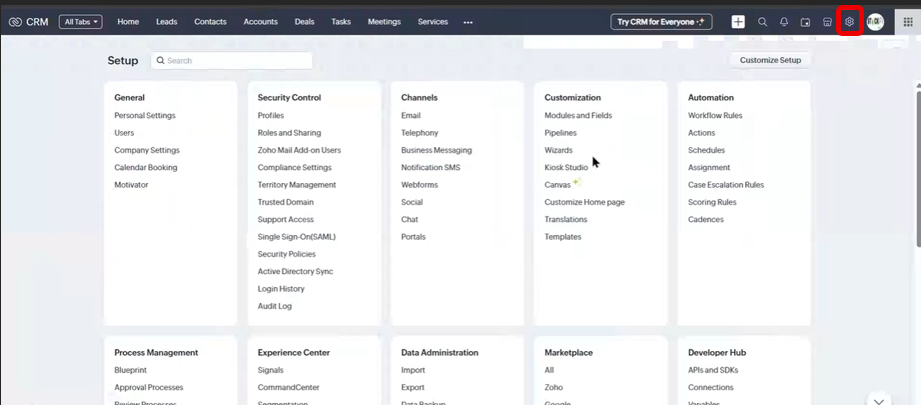
#### **Step 1: Open Zoho CRM Setup**
• Log in to Zoho CRM\
• Click the Setup/Settings icon in the top-right corner
This opens Zoho’s configuration options.
***
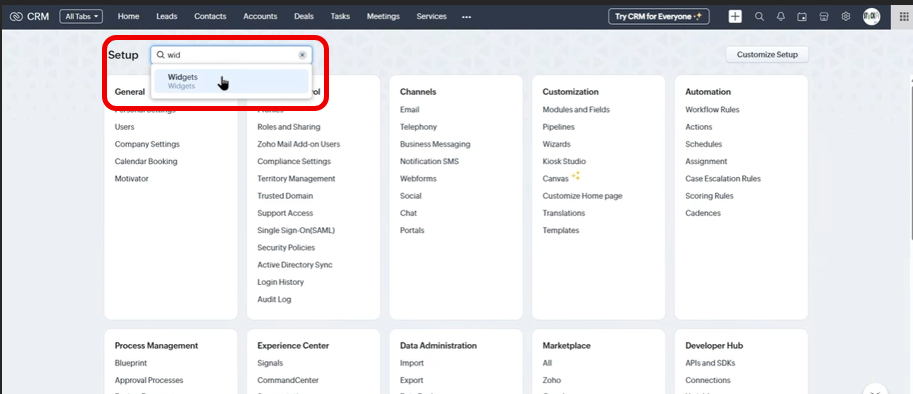
### **Step 2: Search for “Widgets”**
• Type “Widgets” in the search bar\
• Click **Widgets** when it appears
Widgets allow you to add tools inside Zoho.
***
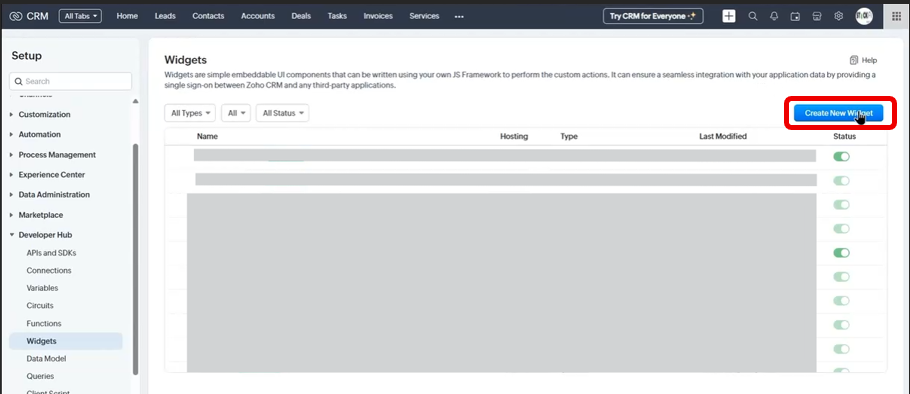
#### **Step 3: Create a New Widget**
• Click **Create New Widget**
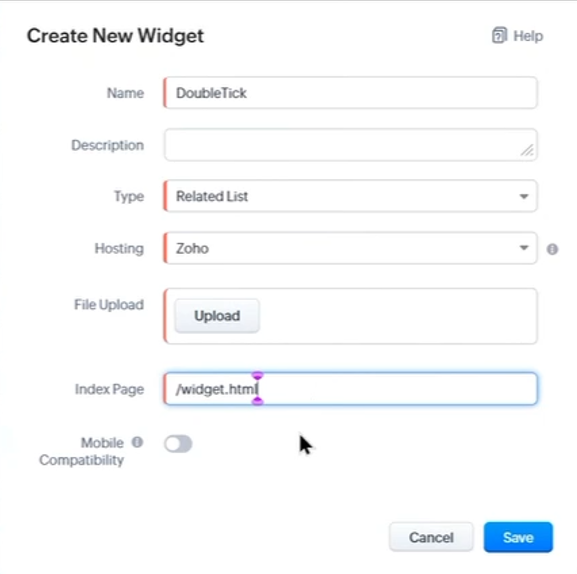
• A form will open\
• Give your widget a simple name like:
> DoubleTick Widget
• Upload the widget ZIP file\
• Save it
Your widget is now created 🎉
***
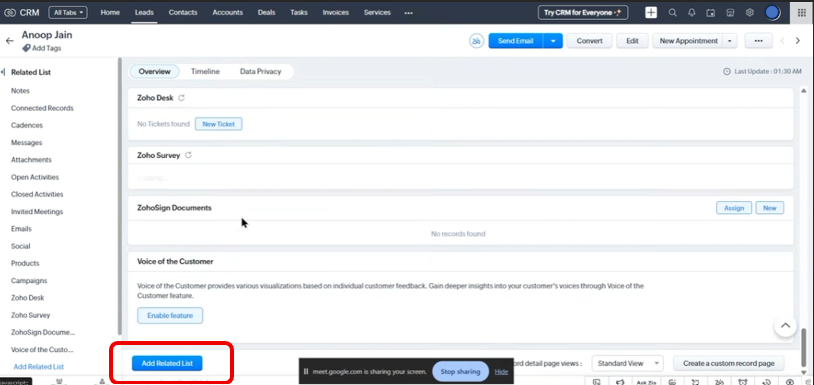
### **Step 4: Add the Widget to Your Lead View**
\
Now you must attach this widget to the Lead or Contact section.
• Open any Lead inside Zoho CRM\
• Scroll down to the bottom\
• Click **Add Related List**\
• Select the DoubleTick Widget you just created\
• Save
***
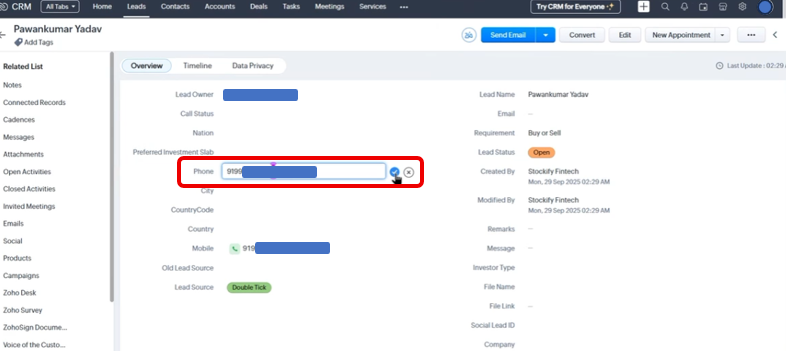
### **Step 5: Make Sure the Lead Has a Phone Number**
The DoubleTick widget loads only when Zoho has a valid phone number.
Important notes:
✔ Use country code format\
Example: **+91 9876543210**
✔ If missing, Zoho will ask you to add it\
✔ Once added, the widget refreshes and loads DoubleTick
DoubleTick uses the phone number to show chat history and enable messaging.
***
### ⚠ **IMPORTANT BEHAVIOUR NOTE**
When the DoubleTick widget loads, it **automatically opens the chat for the same lead** you’re currently viewing inside Zoho CRM.
Example:
If you are viewing Lead “Rahul — +91 99999 88888” in Zoho, DoubleTick opens Rahul’s chat directly when the widget loads.
This makes it faster for sales/support teams to message leads without manual searching.
***
### **🔐 Phone Number Matching Rule**
For messaging to work properly:
**Zoho CRM user phone number = DoubleTick login phone number**
If they don’t match, you may face issues like:
✖ Message not sending\
✖ Chat history not showing\
✖ Buttons not appearing
If mismatched, update the Zoho user phone number or contact support.
***
### 🎉 **You’re All Set!**
Once setup is complete:
✔ Open any Lead or Contact\
✔ Click on the DoubleTick panel\
✔ Chat from the same CRM screen\
✔ View chat history\
✔ Respond faster
This makes workflows significantly more efficient for teams using WhatsApp for sales, support, or pre-sales.
***
### 💬 **Need Help?**
If you need the widget file or setup guidance, reach out:
📧 ****
We’re happy to assist anytime 🙂
---
# Agent Instructions
This documentation is published with GitBook. GitBook is the documentation platform designed so that both humans and AI agents can read, navigate, and reason over technical content effectively. Learn more at gitbook.com.
## Querying This Documentation
If you need additional information that is not directly available in this page, you can query the documentation by asking a question.
Perform an HTTP GET request on the following URL with the `ask` and `goal` query parameters:
```
GET https://learn.doubletick.io/settings/integrations/zoho-crm-+-doubletick-iframe-integration.md?ask=&goal=
```
`ask` is the immediate question: it should be specific, self-contained, and written in natural language.
`goal` is what the user is ultimately trying to achieve, the reason they need the answer. Sharing it helps GitBook give you a better, more relevant answer. A goal is most helpful when it describes the outcome the user wants rather than restating the question. For example, with `ask=how do I create an API token`, a goal like `automate deployments from our CI pipeline` lets GitBook tailor the answer to that use case.
The response will contain a direct answer to the question and relevant excerpts and sources from the documentation.
Use this mechanism when the answer is not explicitly present in the current page, you need clarification or additional context, or you want to retrieve related documentation sections.